
SweetEscape is a free music player that runs in your browser.
Search for any song, keep the ones you like in your own library, and build playlists around them. There's no account and nothing to install. Your songs, playlists and settings stay on your device.
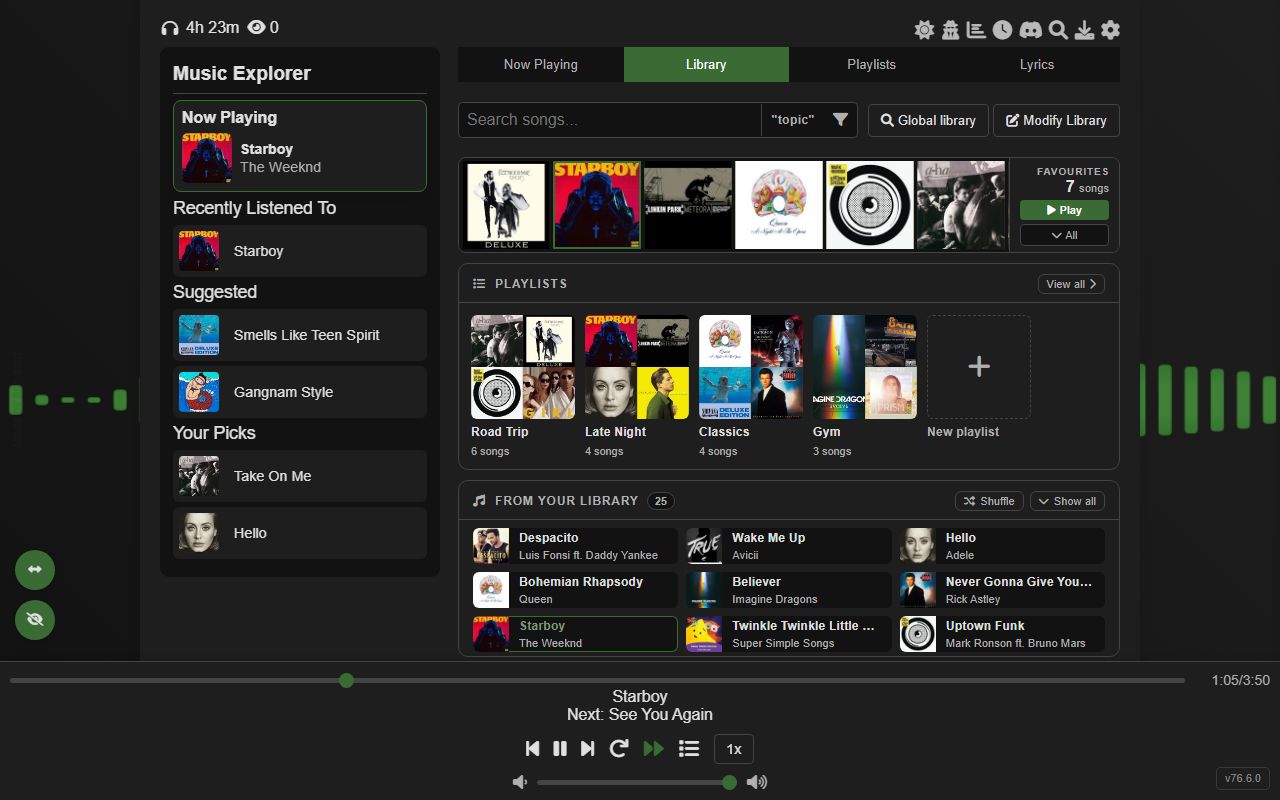
What it is
SweetEscape started as a small side project and grew into a full music player. One person builds it, in plain HTML, CSS and JavaScript, and it's updated often. Every change is listed in the changelog.
Songs play through YouTube's embedded player. Your library is a list of songs saved in your browser's own storage (IndexedDB), with their names, artists, lyrics and covers. Nothing is sent to a server. Once you've visited once, the app itself loads without a connection. You can also link a downloaded audio file to any song so it plays straight from your disk.
Most controls also respond to right-click, long-press or drag, and the everyday actions have keyboard shortcuts. The tutorial covers every one of them, and guide mode can show you around the player itself.
What it can do
- Library
- Search across names and artists as you type, including Russian, Korean, Japanese and Greek songs typed in Latin letters, and the queue, playlist and statistics searches match the same way. Filter by favourite, lyrics, downloaded, or by the language the title is written in. Favourites stay on top.
- Finding new songs
- Type a song that isn't in your library and press Enter to search YouTube, preview a result, and add it. The Global library has the full Billboard Hot 100, artist pages, premade playlists and random picks, plus Mix Lab, which turns a few of your songs or a mood you describe into a mix of songs you don't have yet and plays it straight through.
- Playlists
- Cover tiles you can drag to reorder, a + on every song to drop it into any playlist, and a one-click playlist of every song by an artist that tops itself up later, and YouTube playlists you bring in by pasting their link: pick the songs, skip the ones you already have, and import it again later to pick up new songs. Shuffle, reverse, allow or ban duplicates. While a playlist plays, its side panel lets you search it, loop it, and skip a song for the session without editing the playlist.
- Queue
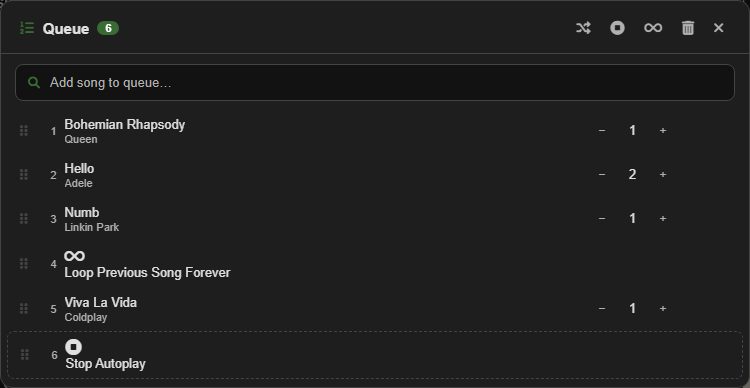
- Line up songs to play next, set how many times each one repeats, reorder them by dragging, and add "loop forever" or "stop here" points.
- Playback
- Speed from 0.25x to 2x, loop and autoplay, a preview of the next three songs, a full-window video mode, and a picture-in-picture miniplayer that stays on top of other apps.
- Lyrics
- Synced lyrics that highlight as the song plays. Fetch them from Musixmatch or the video's YouTube captions, or time them yourself in the Lyrics Maker by tapping along and fine-tuning each line on a timeline.
- Ways to show lyrics
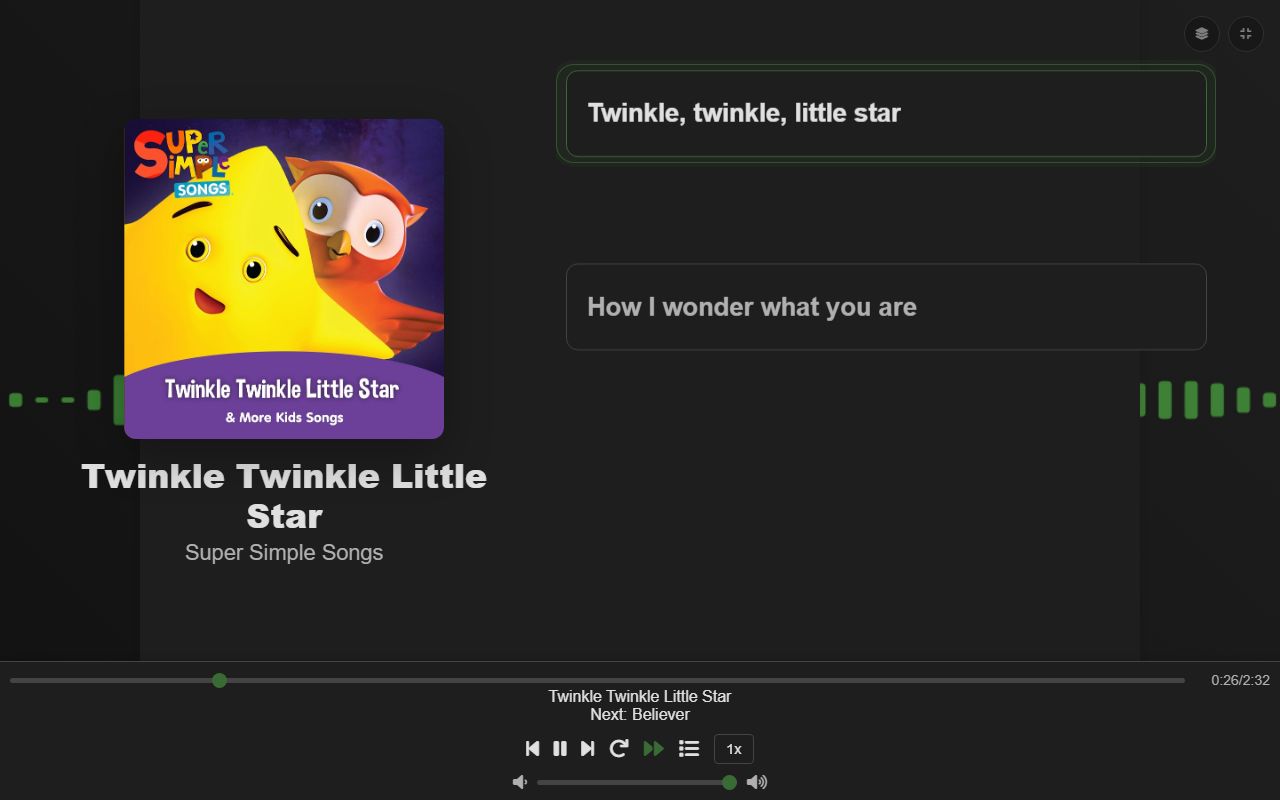
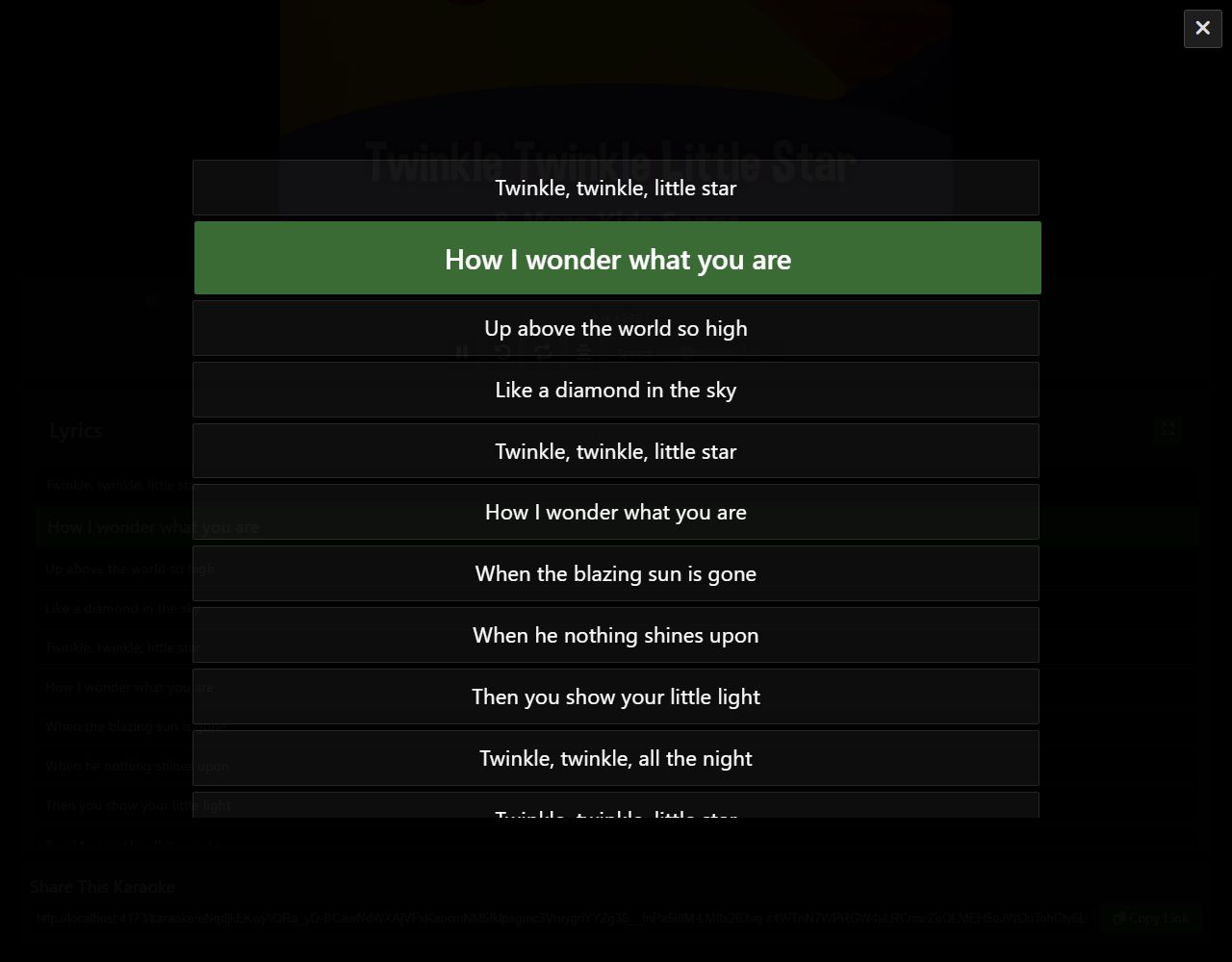
- Follow along in the Lyrics tab, go fullscreen in one of five styles (Verse, Cards, Mirror, Lyric Video and Flow), or send a karaoke link that opens a sing-along page with the lyrics packed into the address.
- Sleep timer
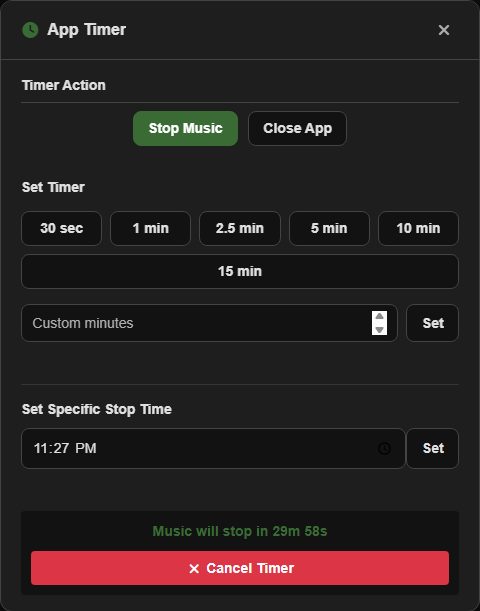
- Stop the music or close the player after 30 seconds to 15 minutes, any number of minutes, or at a set clock time, with a countdown next to the clock icon.
- Identify a song
- Capture a browser tab or your system audio, use the microphone, or upload a clip. Trim it on the waveform, then open the match in Shazam, YouTube Music, YouTube or Spotify, or add it to your library.
- Downloads and offline
- Download songs as MP3s, one at a time or as a batch. Link a downloaded file to a song and it plays from your disk, with no connection needed. SweetEscape Lite is a pared-down player for just those songs, with your playlists and lyrics, that opens without internet.
- Battery saver
- One click on the battery icon turns off the effects that use the most power, like the visualizer, glass and moving backgrounds, while the music keeps playing. Click again and everything comes back as it was. Choose how far it goes, from Normal to Extreme, with an estimated saving next to each option.
- Statistics
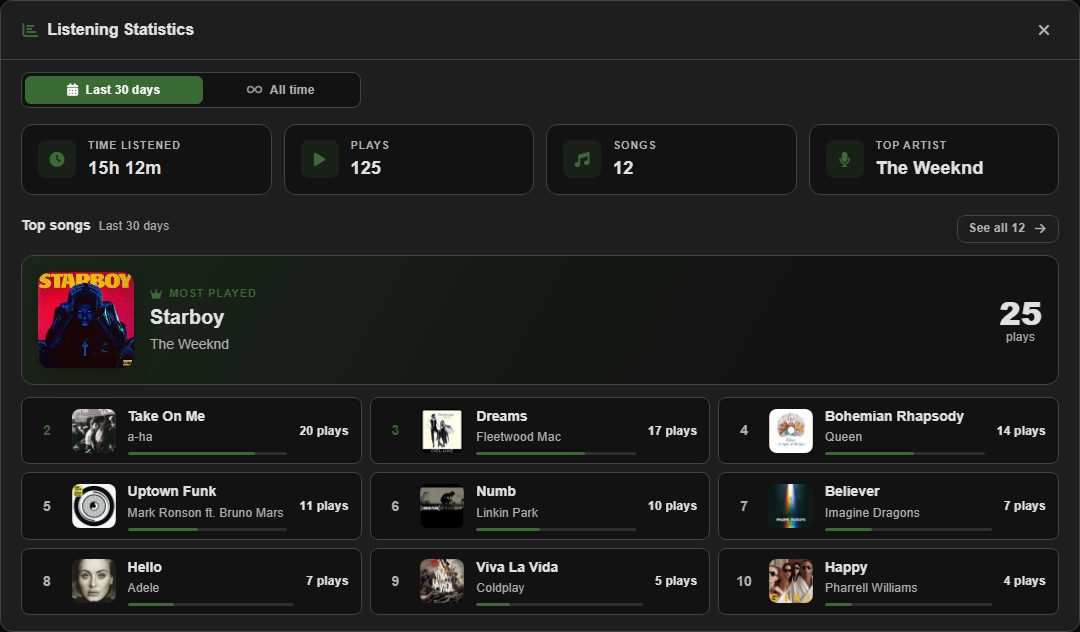
- Time listened, plays, top songs and top artist for the last 30 days or all time, and a per-day play chart for every song. Turn it on in Settings when you want it.
- Looks
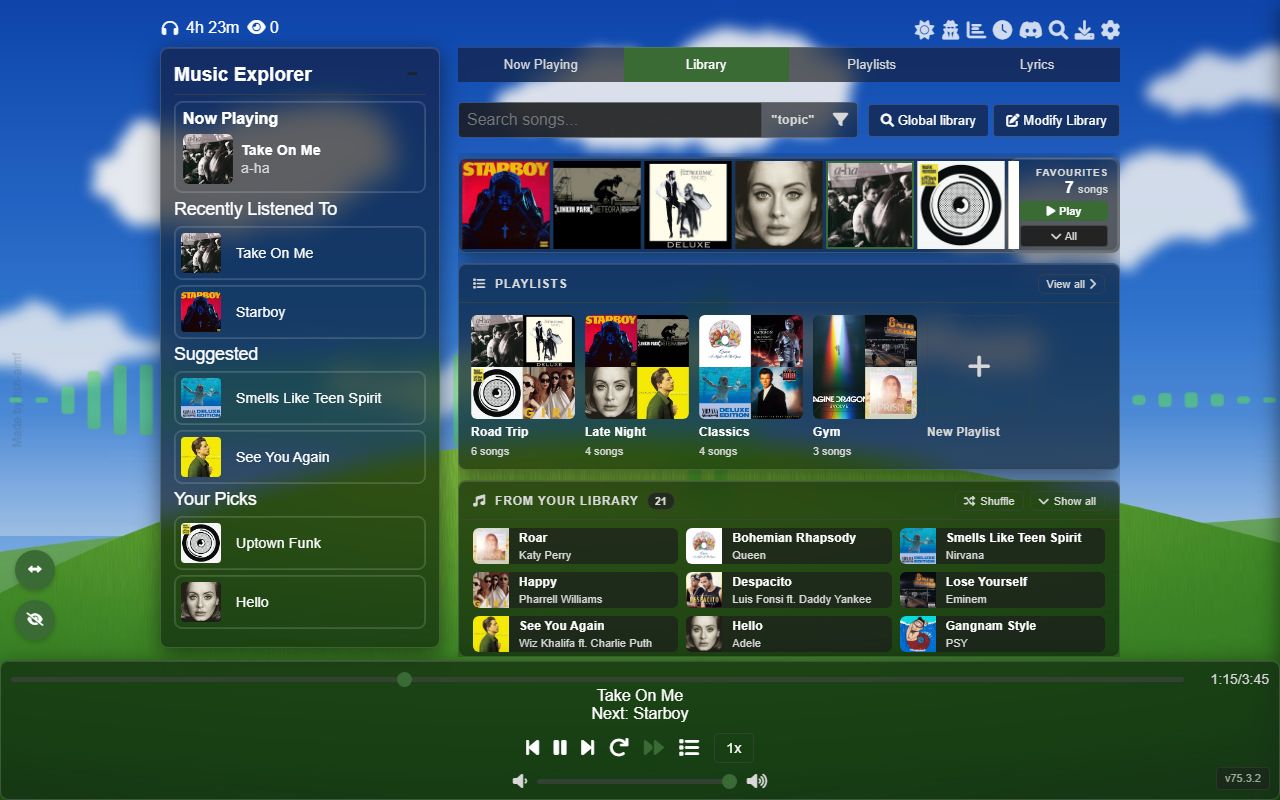
- Light, dark or fully custom colours, saved and shared as theme codes. Glass mode turns the panels see-through over your own photo, a gradient or the current album cover. Six visualizer designs.
- Sharing and backup
- Song links that show a preview card in chat apps and open a page to play or save the song, karaoke links with lyrics, and plain-text import and export of your library and playlists.
- Everything else
- Rebindable keyboard shortcuts, Discord Rich Presence, a tab and page disguise, and a running total of your listening time.
Tips for getting around faster
A few shortcuts that make everyday use quicker. The tutorial lists them all.
- Right-click a song's play button to queue it instead of playing it. This works in the library, Music Explorer, the favourites strip and the song grid, and on a playlist's cover for the whole playlist.
- Press Y to open the queue, where you can reorder songs, set repeat counts and add loop or stop points.
- Long-press a song in the playlist side panel to skip it for the session without changing the playlist.
- Right-click the Lyrics tab for a list of every song that has lyrics.
- Click the "Suggested" or "Your Picks" heading in Music Explorer for a fresh set, or "Recently Listened To" for your full history.
- Hover over next or previous to preview the three songs on either side.
- Paste a YouTube link into the library search and press Enter to add it straight away.
- Press Alt + Shift + G in the player for guide mode, a guided tour of the screen.
A closer look
Where your data lives
Your library, playlists, queue, lyrics, themes and statistics are stored in your browser for this site. There is no sign-in and no copy on a server. That also means clearing your browser's site data wipes it, so use Modify Library, Import/Export now and then to keep a backup. The export is plain text you can read and edit.
When you search, fetch lyrics, identify a song, download one or make a Mix Lab mix, the request goes to the service that does the work (YouTube, Musixmatch, Deezer's music catalog, the Global library database and so on), usually through the site's own small API. Your library as a whole is never part of those requests: Mix Lab only sends the name and artist of the songs you pick.
Songs play through YouTube's privacy-enhanced mode, so listening doesn't leave advertising or tracking cookies in your browser. The feedback form in Settings is a Google Form, which loads Google's own page when you open it.
Questions
Is SweetEscape free?
Yes. There's no paid tier and no account. The site has an optional advertisement setting that is off by default.
Where are my songs and playlists stored?
In your own browser, in IndexedDB. Nothing is uploaded. Clearing site data for sweetescape.vercel.app deletes it, so export your library from Modify Library, Import/Export if you want a backup.
Does it work offline?
The app itself loads offline after your first visit. Songs stream from YouTube, so they need a connection, unless you link a downloaded audio file to the song. SweetEscape Lite plays those linked songs offline, with your playlists and lyrics.
Can I install it like an app?
Yes. In Chrome or Edge, use Install in Settings, Additional, or the install icon in the address bar. It gets its own window and taskbar icon, opens offline, and keeps the same library.
Does it use a lot of battery?
Playing a song costs about what any embedded YouTube player does. Most of the extra comes from the visualizer and glass, so the battery icon at the top right turns those off until you switch it back. SweetEscape Lite skips them altogether.
Can I use it on my phone?
Yes, it works in mobile browsers. On Android a long press does what right-click does on desktop. A few features, like linking local files and the miniplayer, need desktop Chrome or Edge.
How do I move my library to another computer?
Open Modify Library, go to Import/Export, export your songs (optionally with every playlist), and paste the text into Import Songs on the other computer.
Why doesn't the visualizer react to every song?
The visualizer reads the real audio only for songs playing from a local file. YouTube's player doesn't let a page read its audio, so for those it moves in time with the music instead of analysing it.
Is the source code available?
Yes, on GitHub under the CC BY-NC 4.0 license.
Getting started
- Open the player. With an empty library you get a short welcome.
- Click Global library and add a few songs, or type one into the search box and press Enter.
- Press Alt + Shift + G to have guide mode show you around.
- When you want the details, the tutorial goes through every feature with screenshots.