
How to use SweetEscape
A complete guide to the player, from adding your first song to the shortcuts that make everyday use faster.
Notes marked Tip cover right-click, long-press and keyboard shortcuts. None of them are required, but they save a lot of clicks once you know the basics. The quick reference at the end lists them all.
To learn inside the player instead, press Alt + Shift + G. Guide mode points at each part of the screen and explains it.
The screen
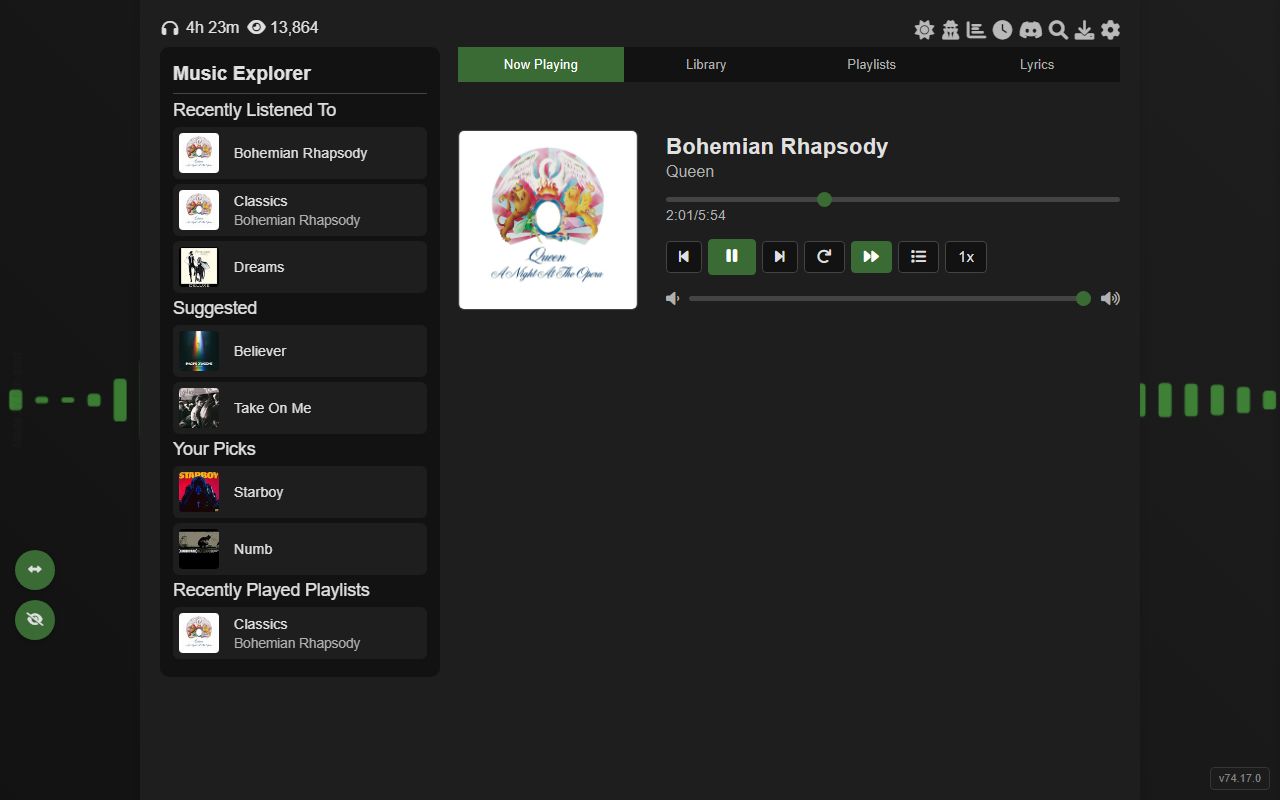
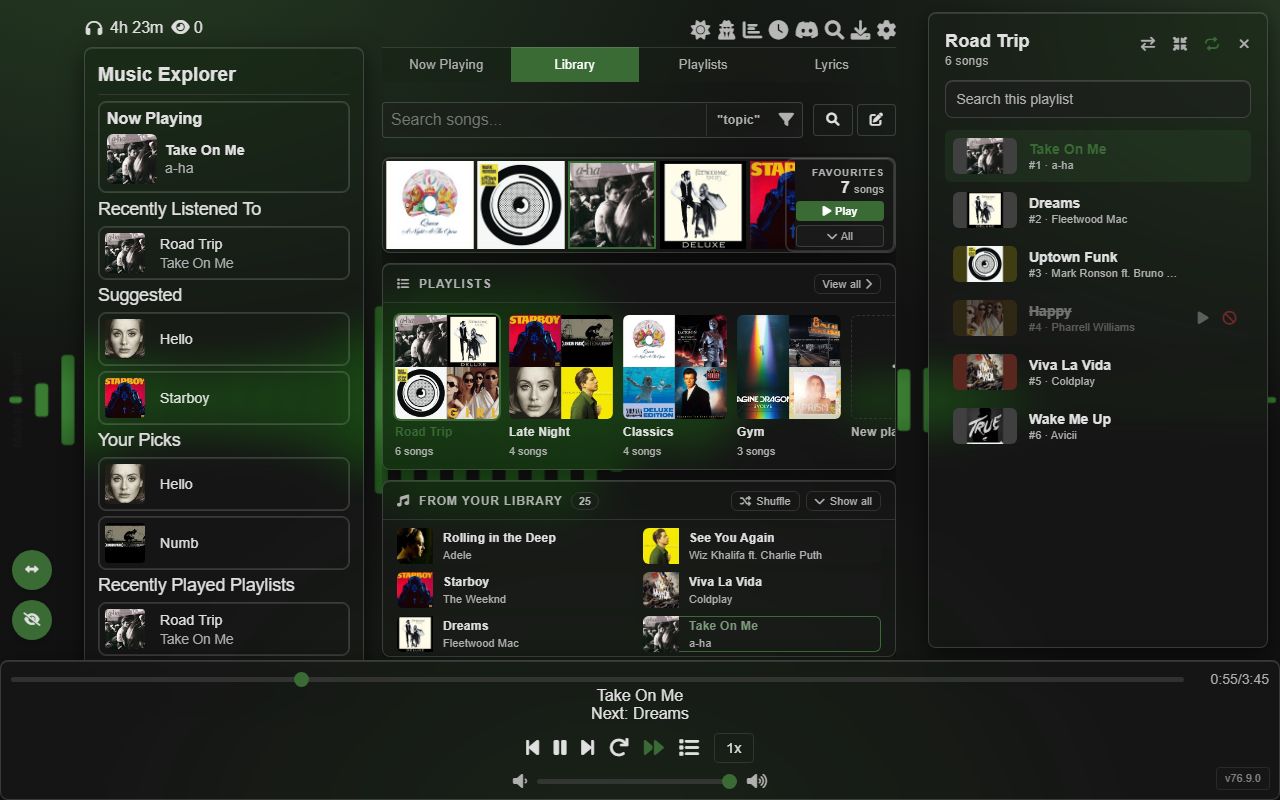
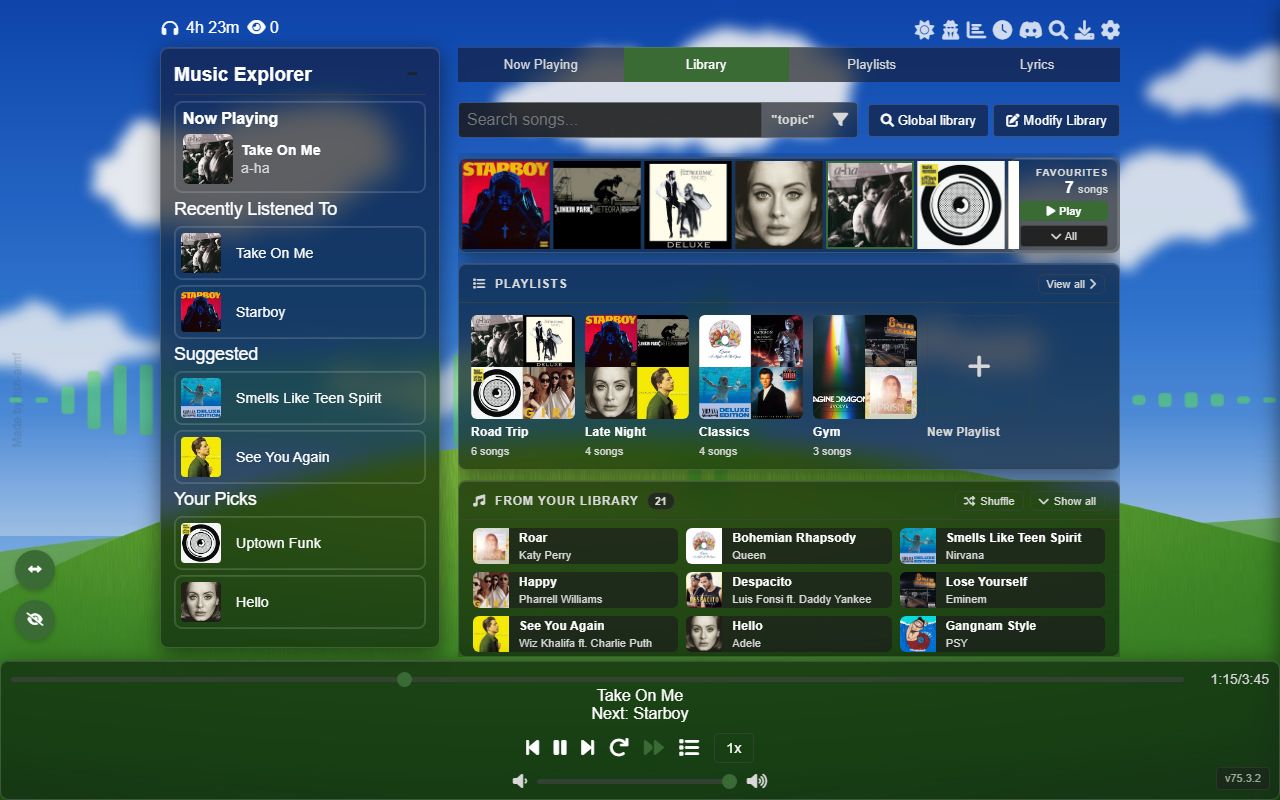
There are three areas. Music Explorer on the left shows what's playing and what to play next. The tabs in the middle switch between Now Playing, Library, Playlists and Lyrics. The control bar along the bottom has the playback buttons, the progress bar and the volume.
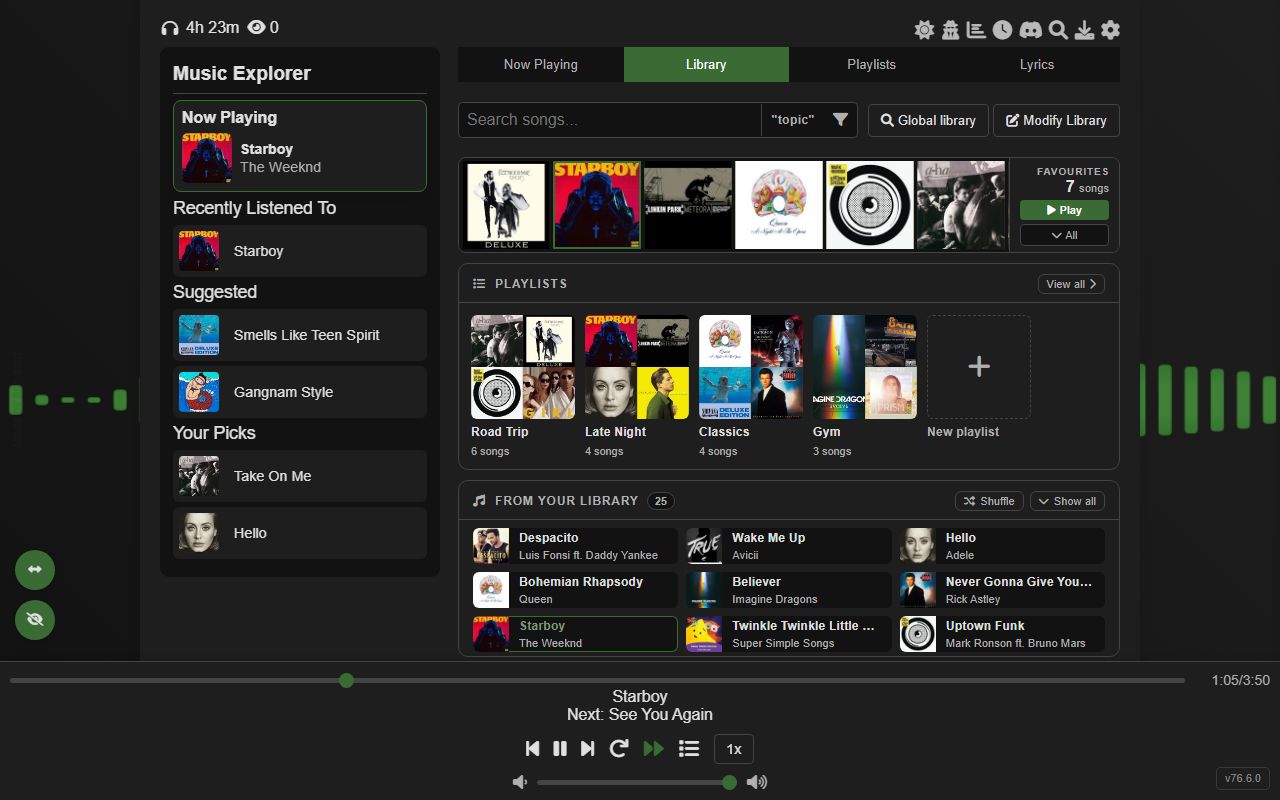
The row of icons at the top right, from left to right:
- Moon: switches between light, dark and your custom theme (P).
- Mask: Disguise.
- Bar chart: Listening statistics.
- Clock: Sleep timer (T).
- Battery: Battery saver.
- Discord: Rich Presence. The dot shows whether it's connected.
- Magnifier: Identify a song.
- Download arrow: Downloads.
- Cog: Settings.
Top left is your total listening time and the site's visitor count. Bottom right is the version number, which opens the changelog when clicked.
The two round buttons at the bottom left hide the control bar (H) and move the playback buttons to the left, centre or right of the bar.
Adding songs
Your library starts empty. There are four ways to fill it.
1. Search, then press Enter
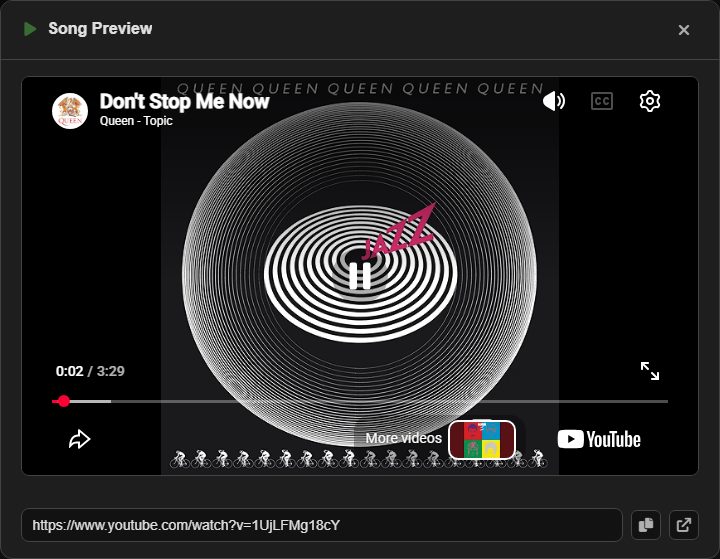
Type into Search songs on the Library tab. If nothing in your library matches and you press Enter, it searches YouTube instead. Each result has Preview, which plays it in a small player without adding it, and Add.
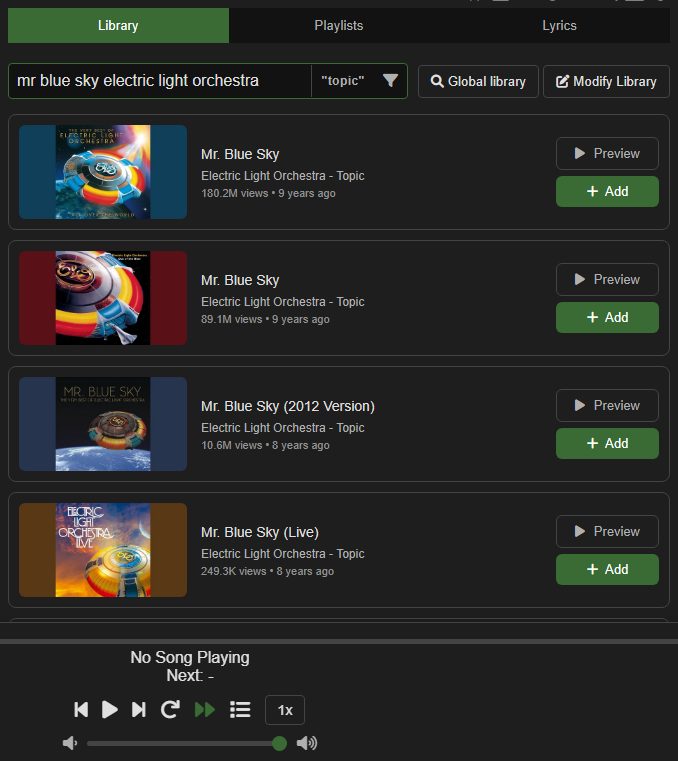
The "topic" button inside the search box adds the word "topic" to YouTube searches. Topic uploads are the official audio releases with the album cover as their picture. They load faster and use less data than music videos. It's on when lit and struck through when off.
Tip Paste a YouTube link into the same search box and press Enter to add that exact video.
2. Modify Library
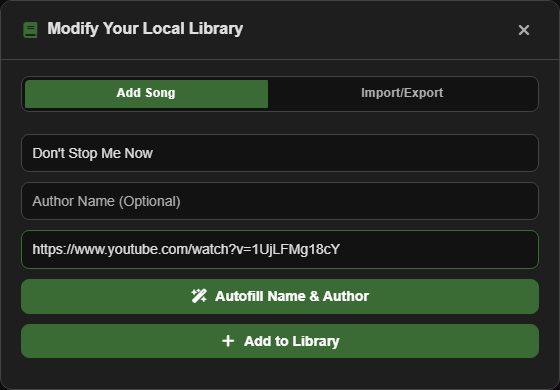
Modify Library, then the Add Song tab, takes a name, an optional artist and a YouTube URL. Paste the URL first and the name fills itself in. Autofill Name & Author splits a title like "Queen - Don't Stop Me Now (Official Video)" into a clean name and artist, and uses the channel name when the title has no artist in it. If you don't like the result, Undo puts back what you'd typed.
Tip Hover over Autofill to preview what it will write before you click.
3. Global library
The Global library button opens a full-screen browser. The rest of the player is hidden until you close it, apart from the control bar, which stays at the bottom so you can keep controlling what's playing; its playlist button opens the side panel over the Global library. On the left is the current Billboard Hot 100 top three, refreshed every day, and Discover Something New, a few random picks with a Refresh button. Click any of them to hear a preview, which pauses whatever was playing until you close it.
The search box on the right finds artists, songs and premade playlists. An artist opens a list of their songs, with Load more at the bottom. A song opens a card with a listen button and an add button. A premade playlist is added to your library in one go, songs and all.
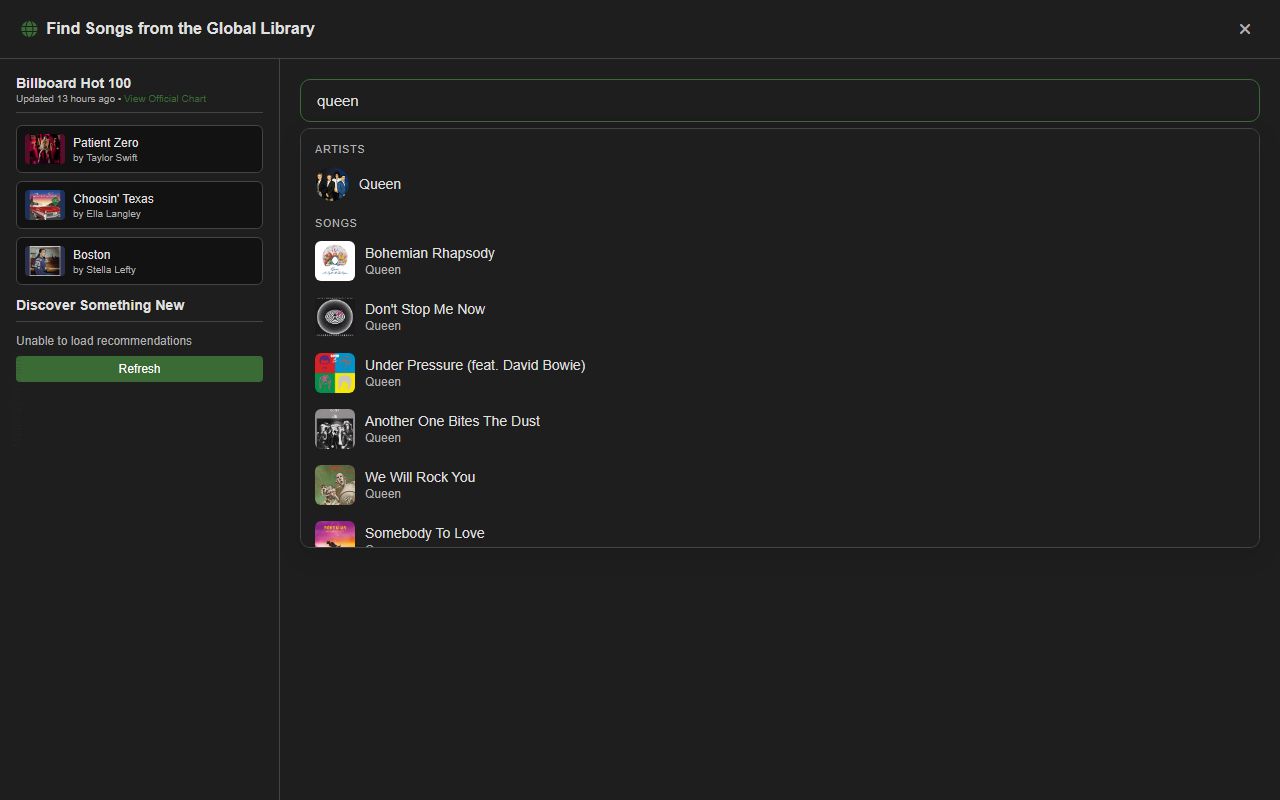
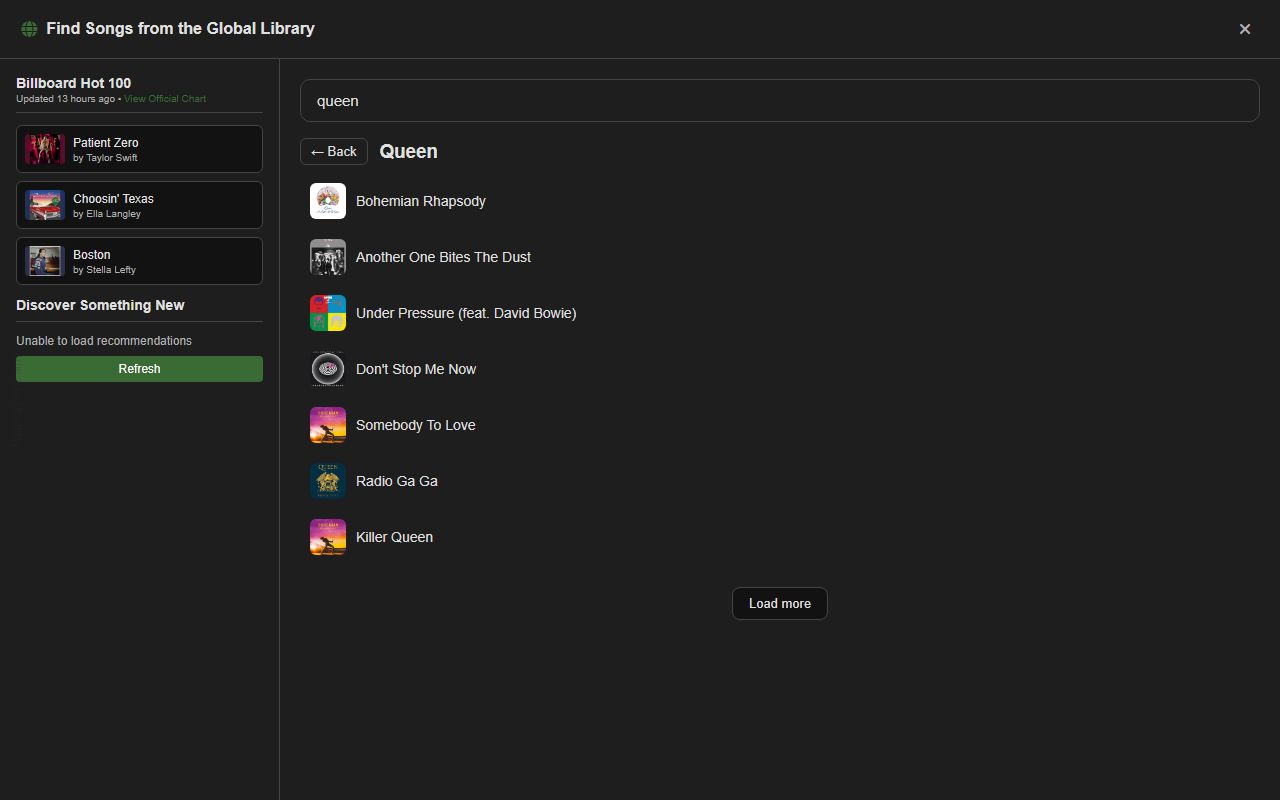
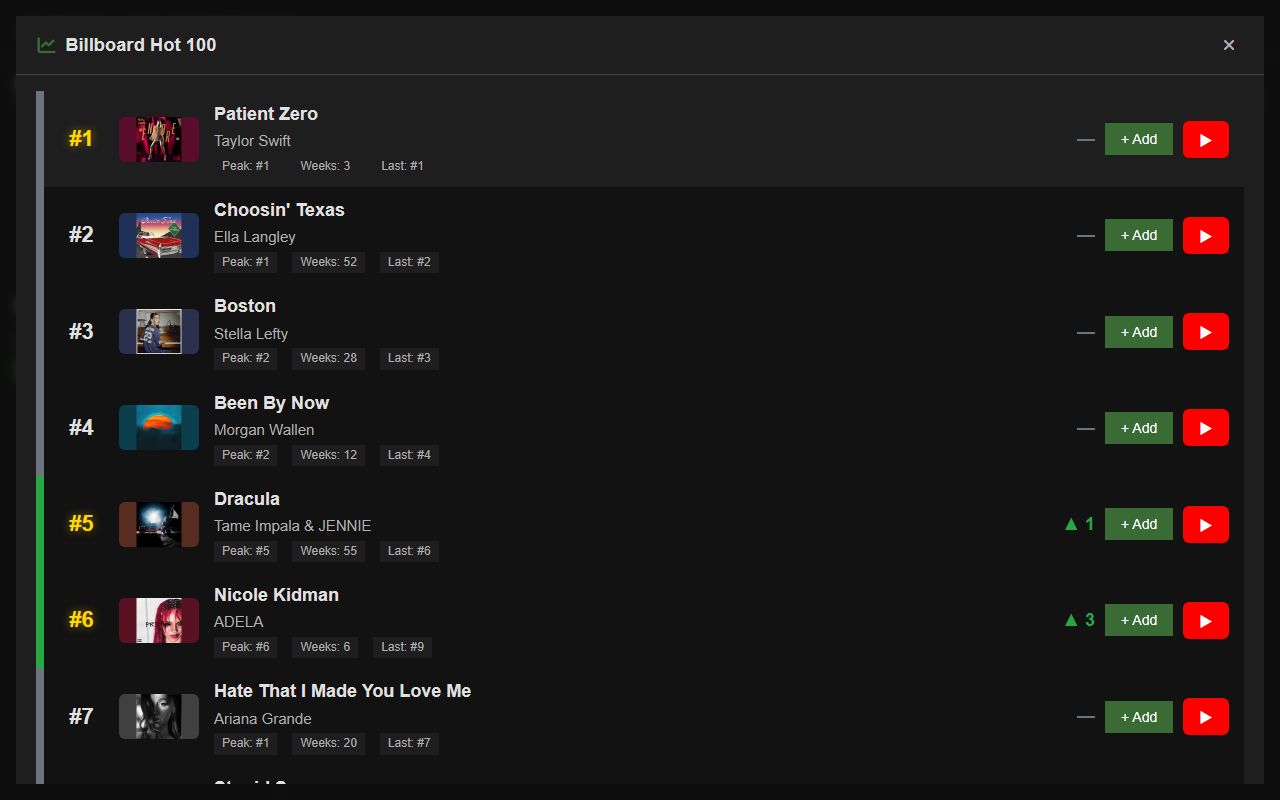
Tip Click the "Billboard Hot 100" heading for the whole chart. Each entry shows its movement since last week, its peak and how long it has charted, with buttons to preview it or add it to your library.
4. Mix Lab
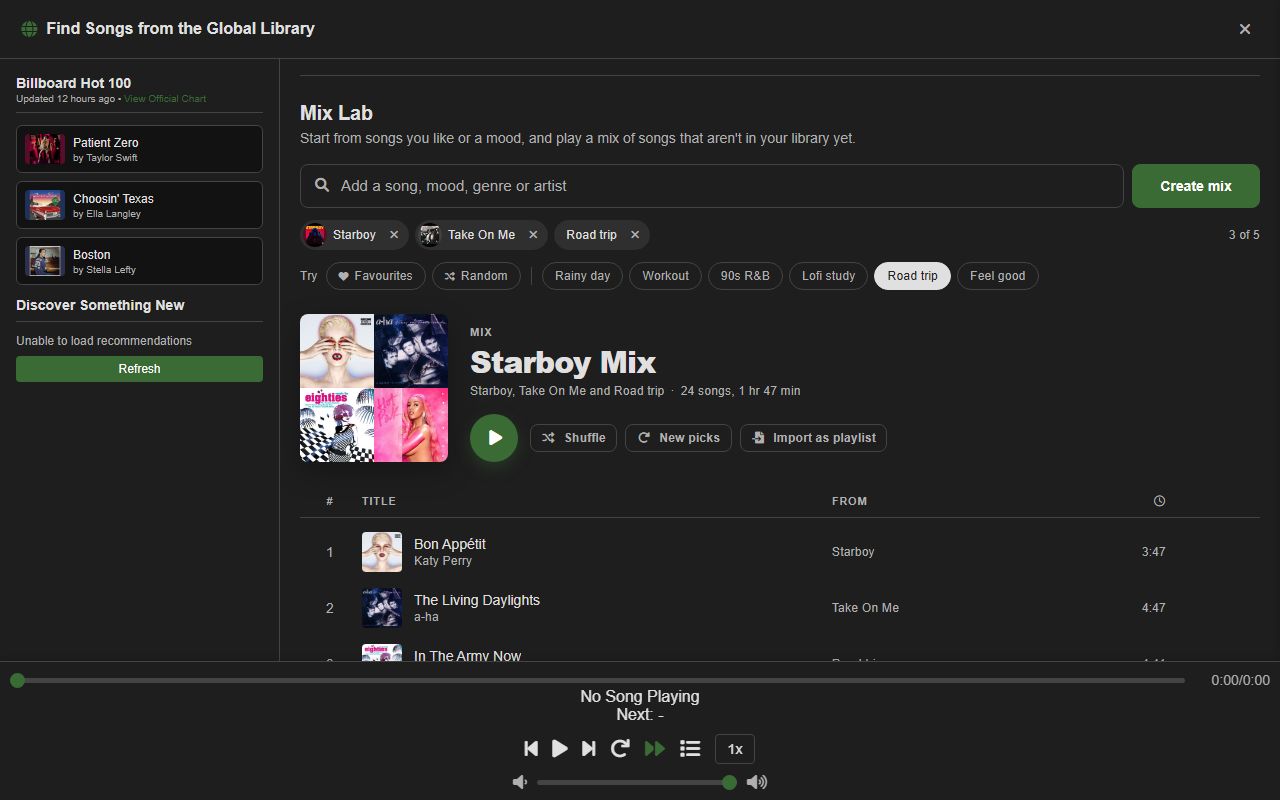
Mix Lab sits under the search box in the Global library. It turns up to five picks into a mix of songs you don't have yet, and plays it straight through like a radio station:
- Songs from your library: type in the box to search your library, or click it to see your recently played songs and favourites. Favourites, Recently played and Random add a few at once.
- Moods, genres and artists: type something like "rainy day", "90s R&B" or "songs like Daft Punk" and press Enter, or click one of the suggestions next to Try.
Click Create mix to get up to 24 songs, none of them already in your library, each showing which pick it came from. The round Play button plays the whole mix in the player and Shuffle plays it in random order. Click a song to play the mix from that song. Next, previous, autoplay, the playlist side panel and the miniplayer work as they do for any playlist, and when the mix is nearly over, more songs like it are added so it keeps going.
Hover a song for +, which opens Add Song with the name, artist and link filled in, and ×, which hides it. New picks makes a fresh mix from the same picks.
Import as playlist keeps the whole mix: every song is added to your library and saved as a new playlist named after the mix, in the same order. Songs you already have are reused rather than added twice, and anything that can't be found on YouTube is left out and counted in the message at the end.
Tip A mix you only play isn't saved: it lasts until you play something else, so import it or add the songs you want to keep. In glass mode with album-art backgrounds turned on, the background shows the cover of the song that's playing.
5. Import a list
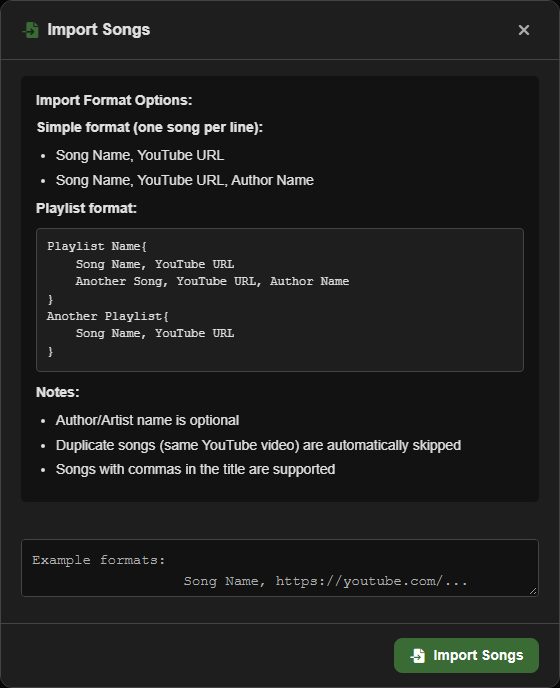
Modify Library, Import/Export, Import Songs takes plain text, one song per line, and whole playlists in braces. See Sharing and backup for the format.
The library
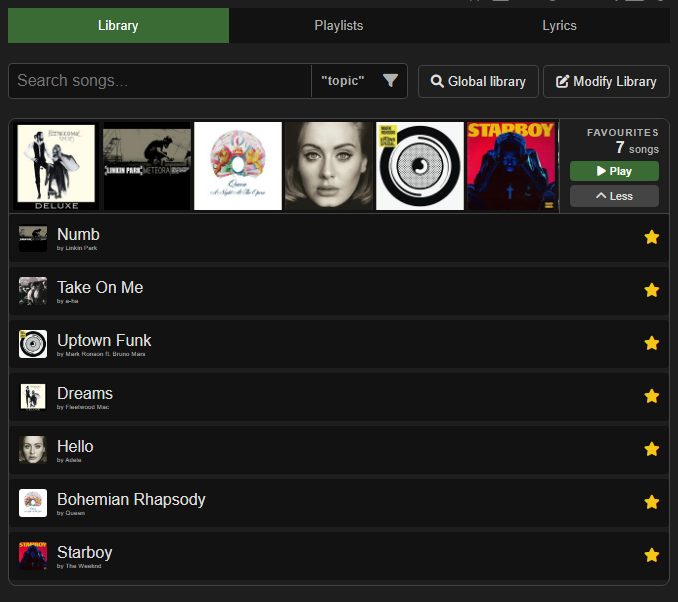
With the search box empty, the Library tab is a home screen with three shelves:
- Favourites: every song you've starred. Scroll it sideways with the mouse wheel or a swipe, and click a cover to play it. Play plays them all in order, and All opens them as a list.
- Playlists: your playlists as cover tiles, plus a New playlist tile. Hover a tile to edit or delete that playlist.
- From your library: a shuffled grid of your songs with their artists, sized to fit the space: big covers on tall screens, compact tiles on shorter ones. Shuffle deals a new set and Show all shows the full list.
Tip Right-click any cover on these shelves to add the song to the queue instead of playing it straight away.
Searching
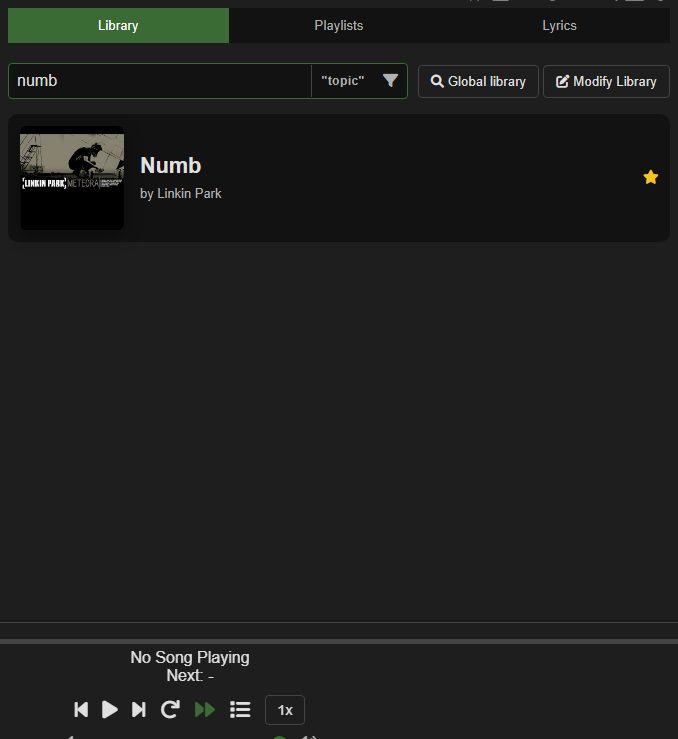
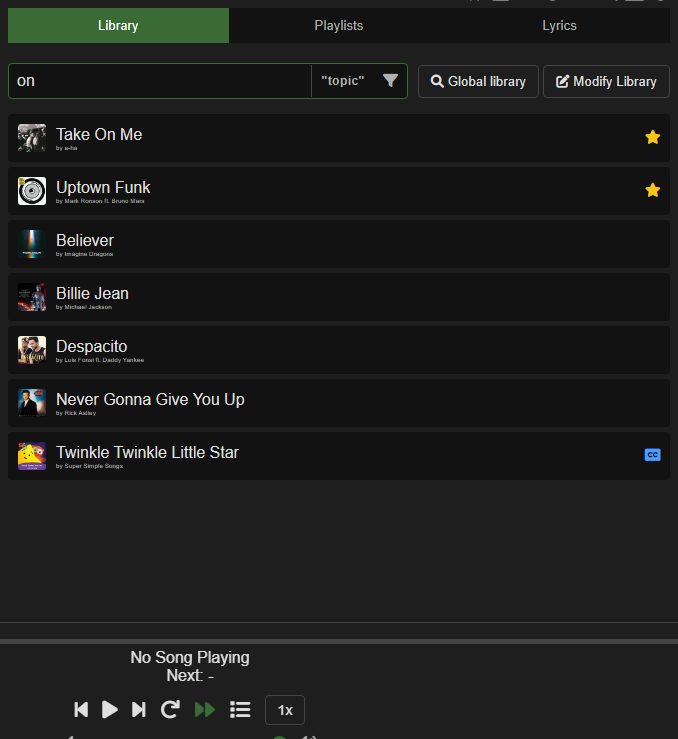
Search matches names and artists as you type. When only a few songs match they show as large cards, a few more get small covers, and long lists stay plain so they scroll quickly. Press Enter to play the first match.
It also understands songs in other alphabets typed in Latin letters: eto finds Это, saranghae finds 사랑해, arigatou finds ありがとう, and agapi mou finds Αγάπη μου. The same matching works everywhere else you search your own songs: the queue, the playlist side panel, the playlist editor, the Playlists tab, the download manager and listening statistics.
Filters
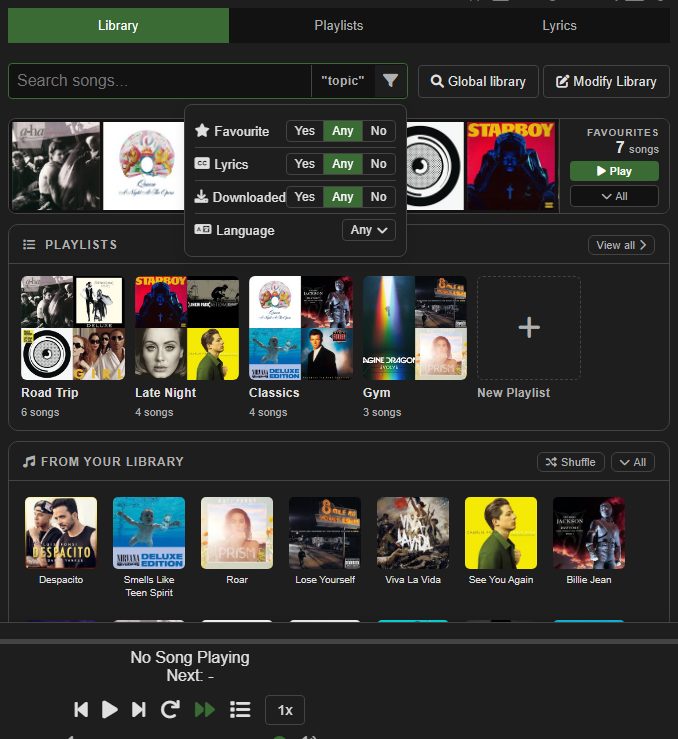
Hover over the funnel icon in the search box. Each row is Yes, Any or No: Favourite, Lyrics (has lyrics saved) and Downloaded (has a local file). Language works out each song's language from the letters in its title, so you can show only Korean songs, for example. Filters combine with whatever you've typed.
Song rows
Hover over a song in a list to show its buttons: star (favourite), play, + (add to a playlist), delete and edit. Small icons at the end of the row show that it has lyrics, a local file or a star. Clicking the name also plays it.
Tip Right-click a song's play button to queue it.
Tip Drag an audio file from your computer onto a song to play that song from the file from then on.
By default the list is alphabetical with favourites on top. Settings, Additional can switch it to the order you added songs, or reverse it.
Editing a song
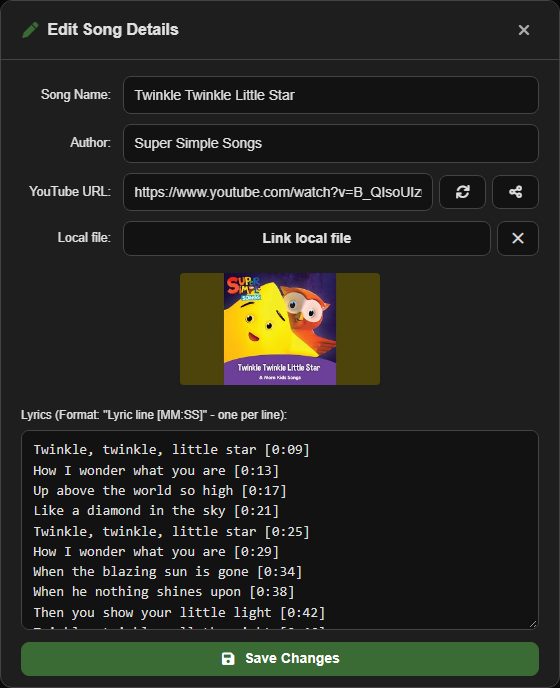
The edit (pencil) button opens Edit Song Details:
- Change the name and artist.
- The circular arrows next to the URL search YouTube for this song again and let you pick a different video, useful when an upload is a live version or has been taken down.
- The share button copies the song's
/song/…link. See Sharing. - Link local file picks an audio file to play instead of YouTube (Chrome and Edge only). The × unlinks it.
- The lyrics box takes one line per lyric, each ending in a timestamp like
[0:33]. Lyrics with no timestamps at all still show, they just don't highlight. Once any line has one, lines without a timestamp are left out.
Playback controls
The control bar, left to right: previous, play/pause, next, loop (repeat this song), autoplay (carry on when the song ends), the list button for the playlist side panel, and speed (0.25x to 2x). Click anywhere on the progress bar to jump there. Volume, speed and loop are remembered for next time. Songs play through YouTube's privacy-enhanced player, which doesn't set advertising or tracking cookies.
Under the song name, Next: tells you what plays after this one, taking the queue and skipped songs into account.
The media keys on your keyboard or headphones work too: play/pause, next and previous. The song name, artist and cover show in your system's media controls, except while a disguise is on, when only the disguise title shows.
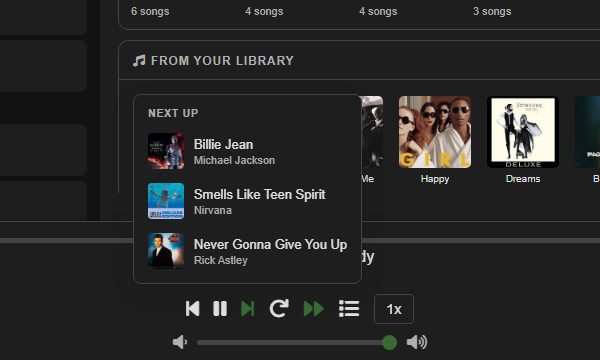
Tip Hover over next or previous to see the three songs on that side.
Tip Right-click the song name in the control bar to copy it.
Now Playing tab
Once a song is playing, a Now Playing tab appears with a large cover and its own controls. While it's open the bottom bar tucks away, since everything it holds is on the tab. Clicking the Now Playing card in Music Explorer also brings you here, and Q cycles through the tabs.
Video mode and the miniplayer
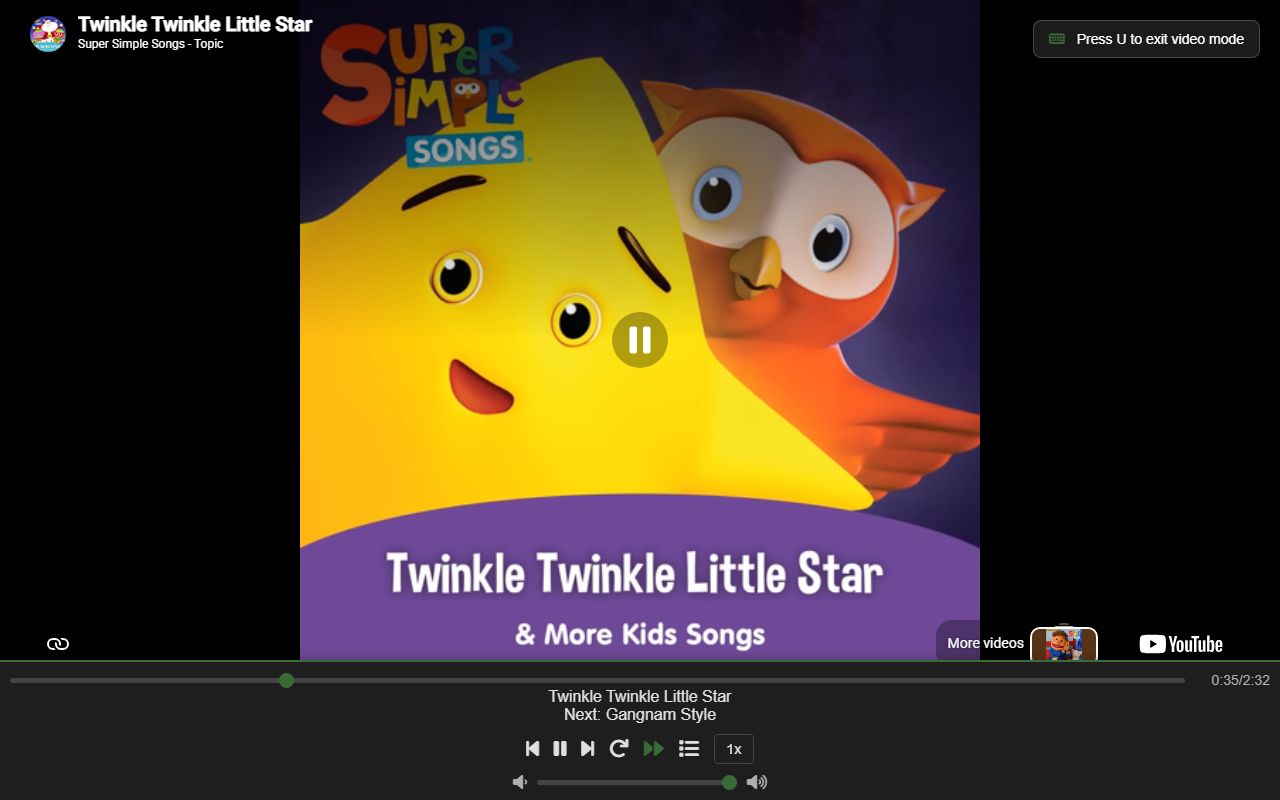
U fills the window with the YouTube video, and pressing U again returns to the player. For Topic uploads that's the album cover.
I pops the player out into a small always-on-top window with the cover and controls, so it stays on screen while you work in another app. This uses Document Picture-in-Picture, which needs Chrome or Edge on a computer.
If you close or reload the tab while music is playing, the browser asks first. Trackpad back swipes, mouse side buttons and Alt + arrow keys are ignored so you don't leave the player by accident.
The queue
The queue holds songs to play next, before the playlist carries on. Press Y to open it.
To add a song, right-click its play button: in a library list, in Music Explorer, in the favourites strip or the song grid. A short note at the bottom of the screen confirms it. Right-clicking the same song twice in a row sets it to play twice rather than listing it twice. Right-click a playlist's cover to queue every song in it.
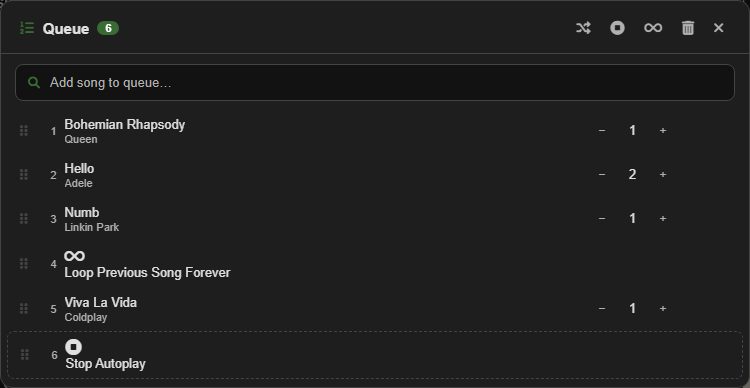
Inside the queue:
- The search box adds any library song. Use the arrow keys and Enter to pick one.
- − and + set how many times a song plays, up to 99.
- Drag the grip on the left to reorder. Each row also has duplicate and remove buttons.
- The header buttons shuffle the queue, add a stop block (playback stops when it reaches it), add a loop block (the song before it repeats until you skip), clear it, and close it.
The queue is saved, so it's still there after a reload.
Playlists
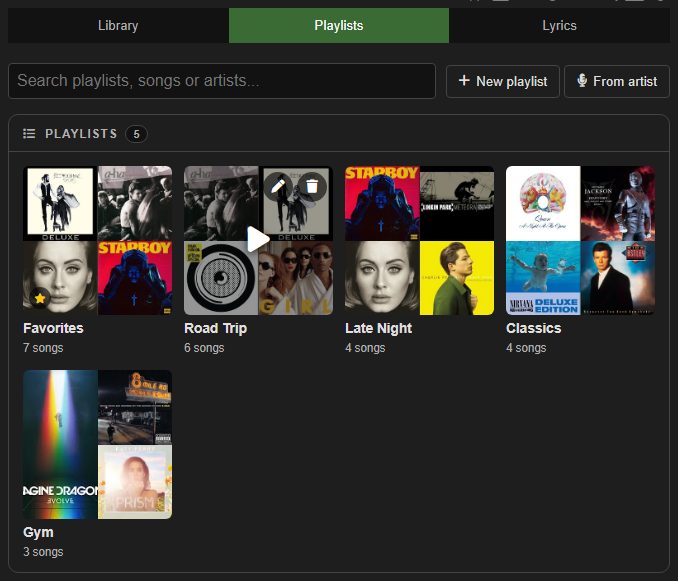
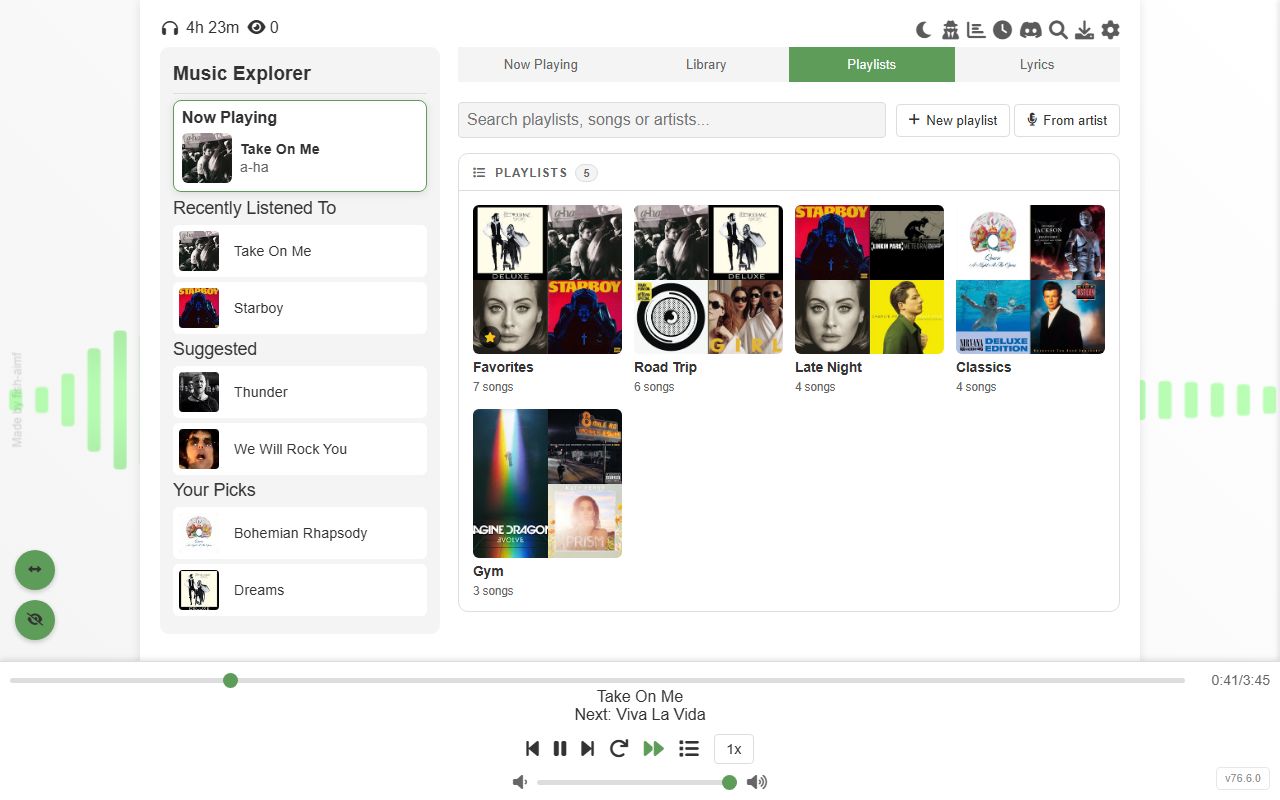
With the search box empty, the Playlists tab shows every playlist as a cover tile with its song count. Favorites comes first and keeps itself in sync with your starred songs. The playlist that's playing is outlined.
- Click a tile to play the playlist. An empty playlist opens in the editor instead, so you can add songs.
- Hover a tile for two buttons: the pencil opens the editor and the bin deletes the playlist. Deleting asks first, keeps the songs in your library, and shows Undo for a few seconds in case you change your mind. Favorites has no bin.
- New playlist asks for a name, then opens the editor.
- Drag a tile to reorder your playlists. The shelf in the Library tab follows the same order.
Tip Right-click a cover to add the whole playlist to the queue.
Searching playlists
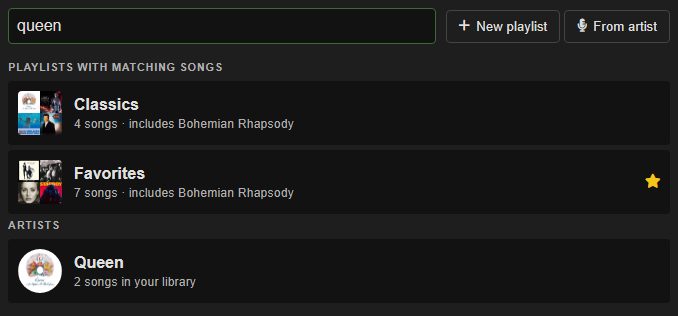
Type in the search box and the grid turns into a list in up to three groups: playlists whose name matches, playlists that contain a matching song or artist (with the songs named), and artists from your library. Hover a playlist for play, delete and edit. Enter plays the top playlist.
A playlist from an artist
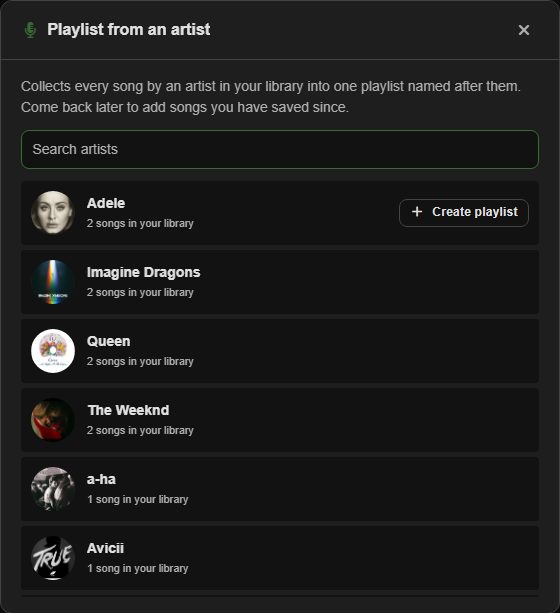
From artist lists every artist in your library with how many of their songs you have, most first. Click one, or the Create playlist button that appears when you hover it, and all their songs go into one playlist named after them, sorted by title.
- Featured artists count, so Mark Ronson ft. Bruno Mars goes into both artists' playlists. Channel names like ArtistVEVO and Artist - Topic are matched to the artist.
- Duos and bands stay together: Simon & Garfunkel is one artist unless you also have songs credited to Simon alone.
- Add more of their songs later and the row offers Add with the number of new songs, which tops up the same playlist even if you've renamed it. Once it's up to date, the button plays it.
- Artists also appear when you search the Playlists tab, with the same button.
Importing a YouTube playlist
Copy the link of a YouTube playlist, or of a video playing inside one, and paste it anywhere on the page. You can also click From YouTube on the Playlists tab and paste it there, paste it into the library search, or paste it into the URL box in Modify Library, which offers Import playlist under it.
- Every song is listed with its cover and length, and they all start ticked. Untick the ones you don't want, or shift-click a box to tick or untick a whole range. New and In library narrow the list, and the filter box searches it.
- Names and artists are read from the video titles the same way Autofill does it. Hover a song and click the pencil to fix one before importing.
- Songs you already have are marked In library. They're never added a second time, but they still go into the playlist. A song that appears twice in the YouTube playlist is listed once. Deleted and private videos are greyed out. Videos whose uploader only allows them on YouTube are marked Won't play here and start unticked, because the player here can't play them.
- Also create a playlist is on by default and uses the YouTube playlist's name. Turn it off to add the songs to your library only.
- Import the same YouTube playlist again later and the switch becomes Also update, which adds only the songs your playlist doesn't have yet.
- Changed your mind? Undo on the message that follows removes exactly what was added.
- YouTube Mixes and your private Liked videos and Watch later lists can't be imported. Save their songs to a public or unlisted playlist on YouTube first.
Editing a playlist
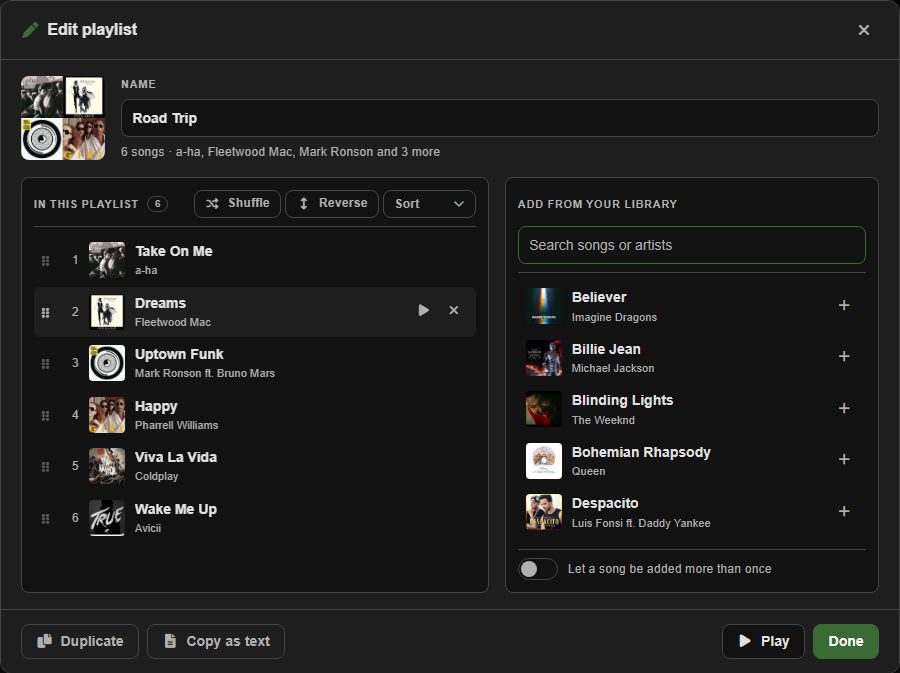
The pencil on a playlist opens the editor: its songs on the left, your library on the right. Every change is saved as you make it, so Done just closes the editor.
- Rename it in the Name box at the top. The new name is saved when you press Enter or click away. If another playlist already has that name, you're told and the old name stays.
- Add songs by searching your library on the right by song or artist, with the same matching as the library search, then click a song. Enter adds the top result. Songs already in the playlist show a tick.
- Reorder by dragging a song. Hover a song to play the playlist from it, or to remove it with the cross.
- Shuffle, Reverse and Sort (by title or by artist) change the saved order. If the playlist is playing, it carries on from the same song. If a song is listed more than once, a bar at the bottom of the list offers Remove duplicates, which keeps the first copy.
- For a playlist made with From artist, a bar offers to add any newer songs by that artist in your library.
- Duplicate makes a copy you can change without touching the original. Copy as text puts the playlist on your clipboard in the Import Songs format, to paste to a friend or keep as a backup.
- To add the same song twice on purpose, turn on Let a song be added more than once.
- In Favorites the name stays fixed, and adding or removing a song stars or unstars it.
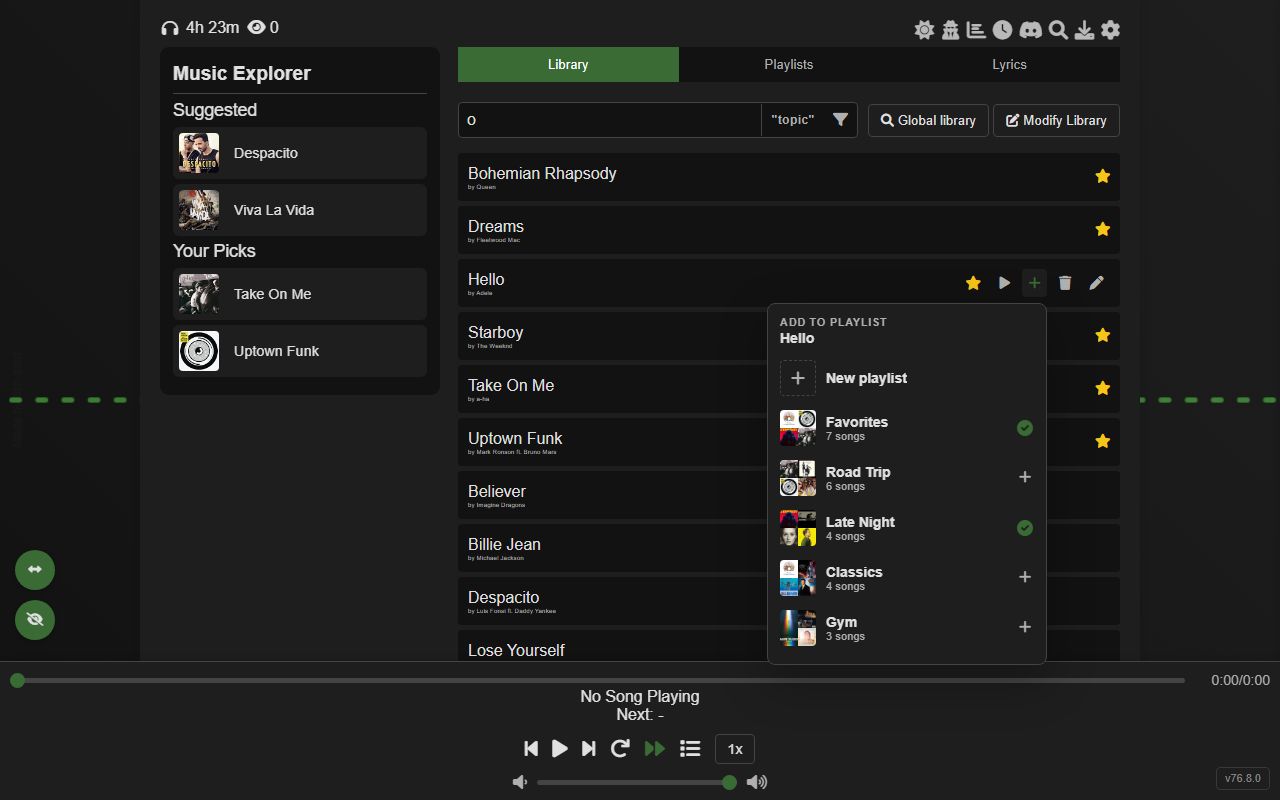
Adding a song to a playlist from anywhere
Hover a song in a library list and click +, or press + in the Now Playing tab. A small menu lists your playlists with a tick on the ones the song is already in. Click a playlist to add the song, or a ticked one to take it out again. The menu stays open, so you can pick several.
- New playlist at the top makes a playlist that starts with this song.
- With more than six playlists the menu gets a search box, and Enter picks the top match.
- Ticking Favorites stars the song.
Playlist side panel
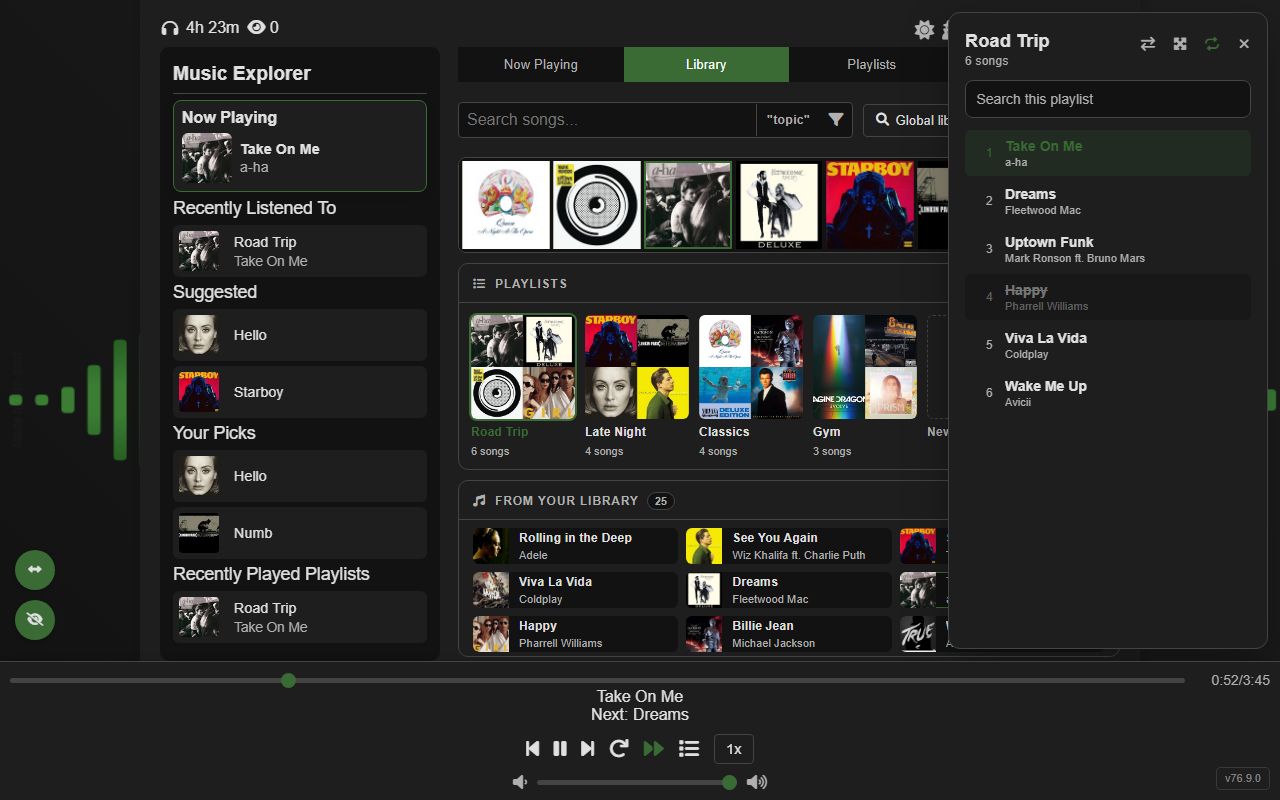
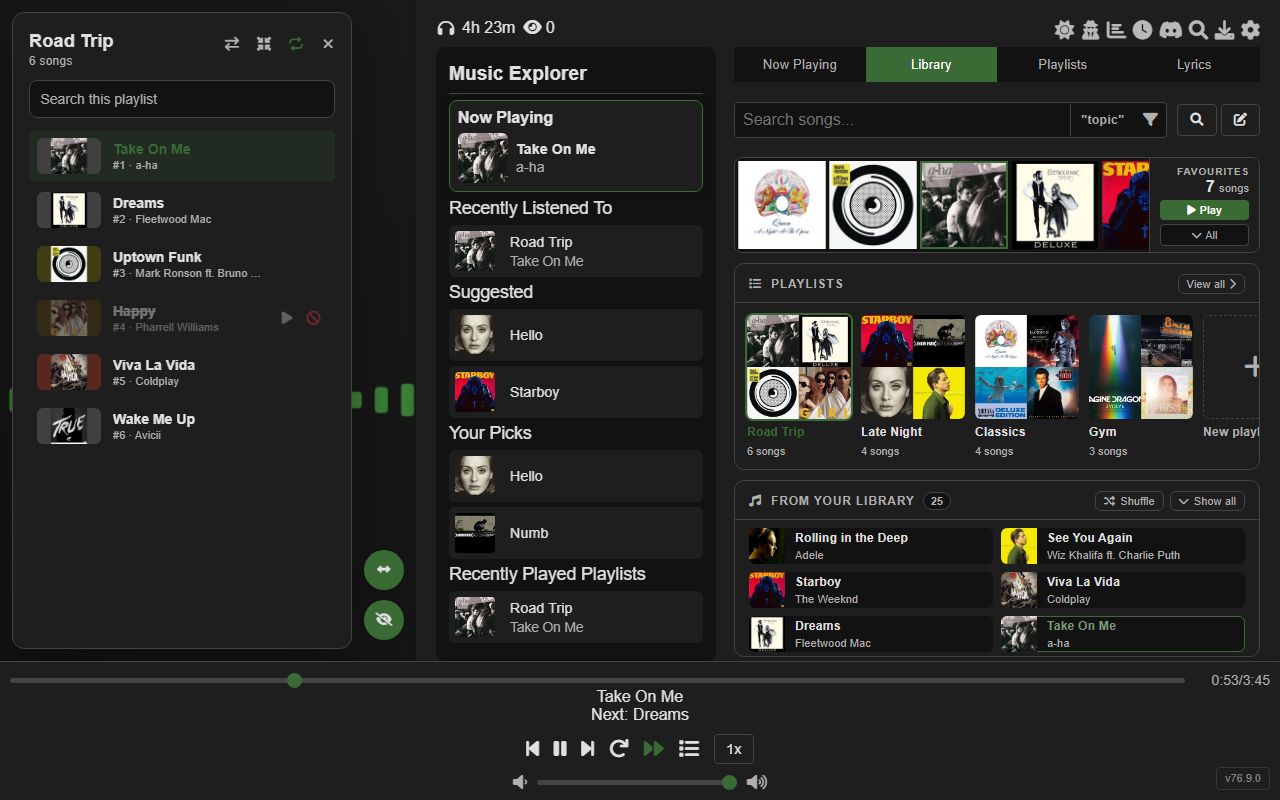
While a playlist is playing, the list button in the control bar (or M, or Tab) opens its songs in a panel that floats above the control bar. Click a song to jump to it. The song that's playing is highlighted, and the search box filters the panel by song or artist.
The buttons at the top of the panel, left to right:
- Swap sides (the two arrows) moves the panel between the left and right of the screen.
- Expand switches between the floating overlay and the expanded panel, which shows covers and moves the page aside instead of covering it. Each one remembers its own side, so you can keep the overlay on the right and the expanded panel on the left, or any mix.
- Loop repeats the playlist when it reaches the end. It's highlighted while it's on.
- The cross closes the panel.
Tip Long-press a song in the panel to skip it for this session. It's struck through and won't play until you long-press it again or reload. Nothing is removed from the playlist, and if it's the song that's playing, the player moves on straight away.
Music Explorer
The left column. O hides and shows it. From the top:
- Now Playing: click it to open the Now Playing tab.
- Recently Listened To: the songs and playlists you played last.
- Suggested and Your Picks: songs from your library to play next.
- Recently Played Playlists.
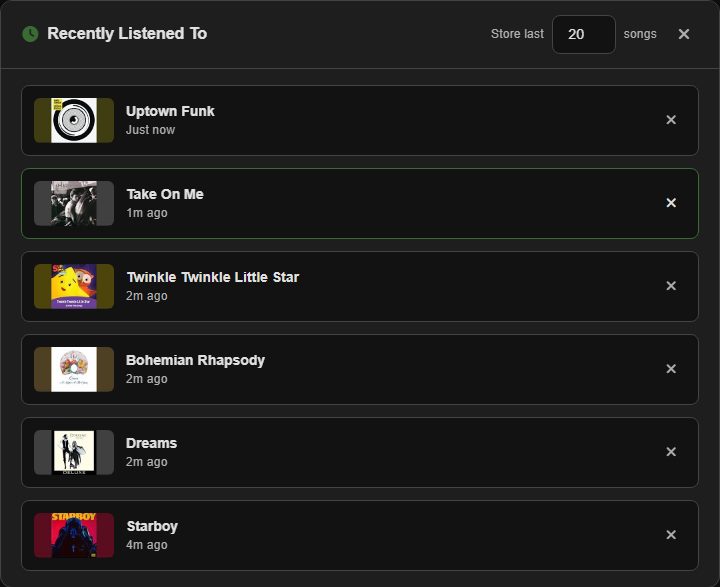
Click a song to play it. Tip Right-click to queue it, click the "Suggested" or "Your Picks" heading for a fresh set, and click "Recently Listened To" for your full history, where you can remove entries and choose how many are kept.
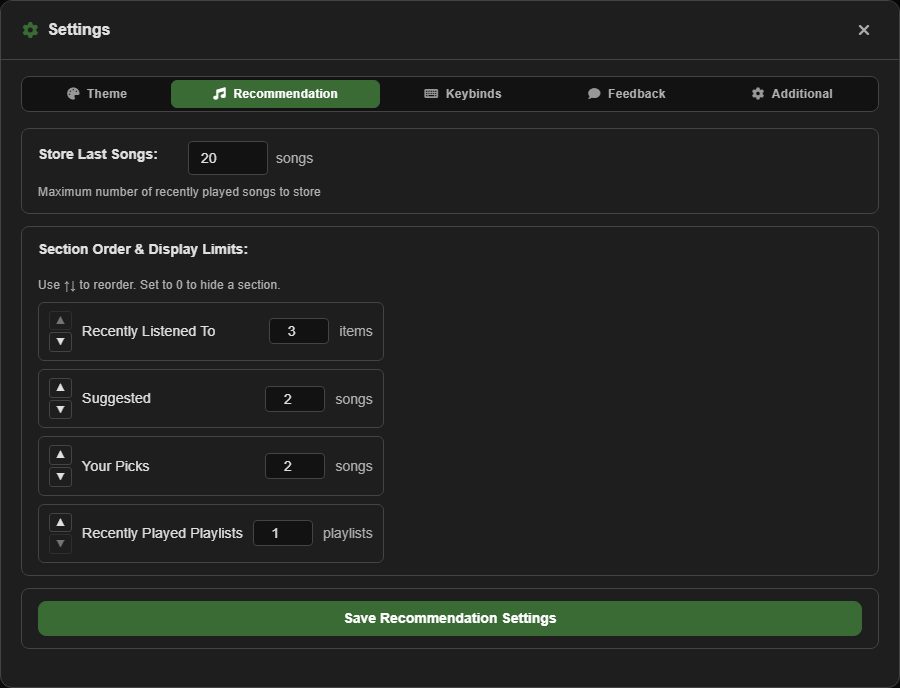
Settings, Recommendation sets how many items each section shows (0 hides it) and the order of the sections.
Lyrics
There are three ways to follow along with a song's lyrics: the Lyrics tab, fullscreen lyrics in five styles, and the karaoke page you can share with someone else.
The Lyrics tab highlights each line as it's sung. The three round buttons in its corner keep the current line centred (or let you scroll freely), copy a karaoke link, and open fullscreen lyrics.
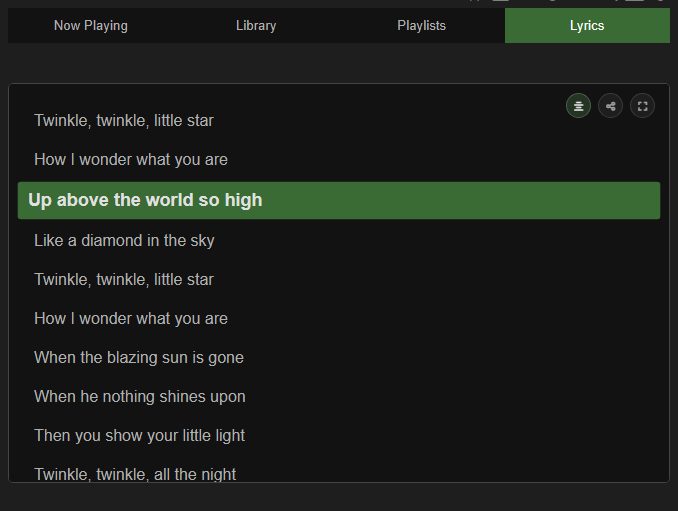
Tip Right-click the Lyrics tab for a list of every song that has lyrics. Copy copies a song's lyrics and Edit opens it in the song editor.

Getting lyrics for a song
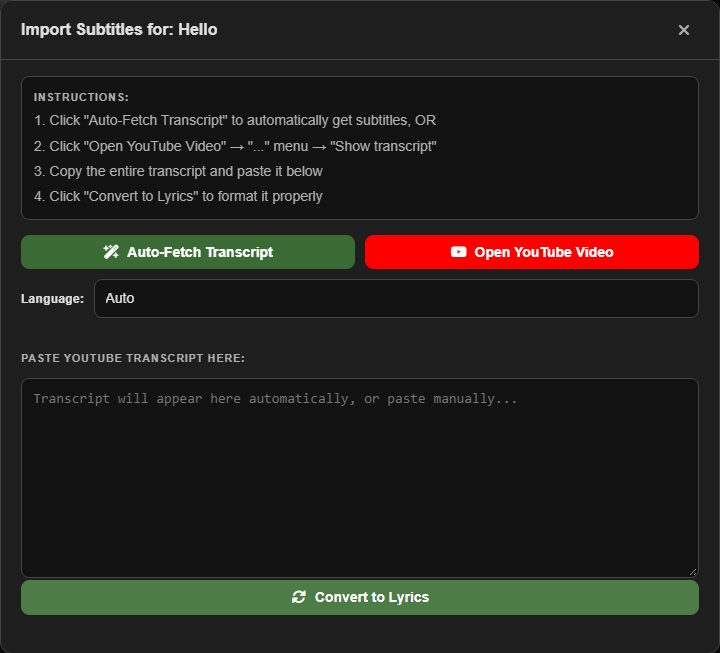
When a song has none, the Lyrics tab offers two buttons. Transcribe lyrics opens the Lyrics Maker. Import subtitles as lyrics uses the video's YouTube captions: Auto-Fetch Transcript grabs them (pick a language if there are several), or open the video, copy its transcript and paste it in. Convert to Lyrics turns it into timed lines, drops filler like "[Music]", and lets you tidy the result before saving.
Timing your own lyrics
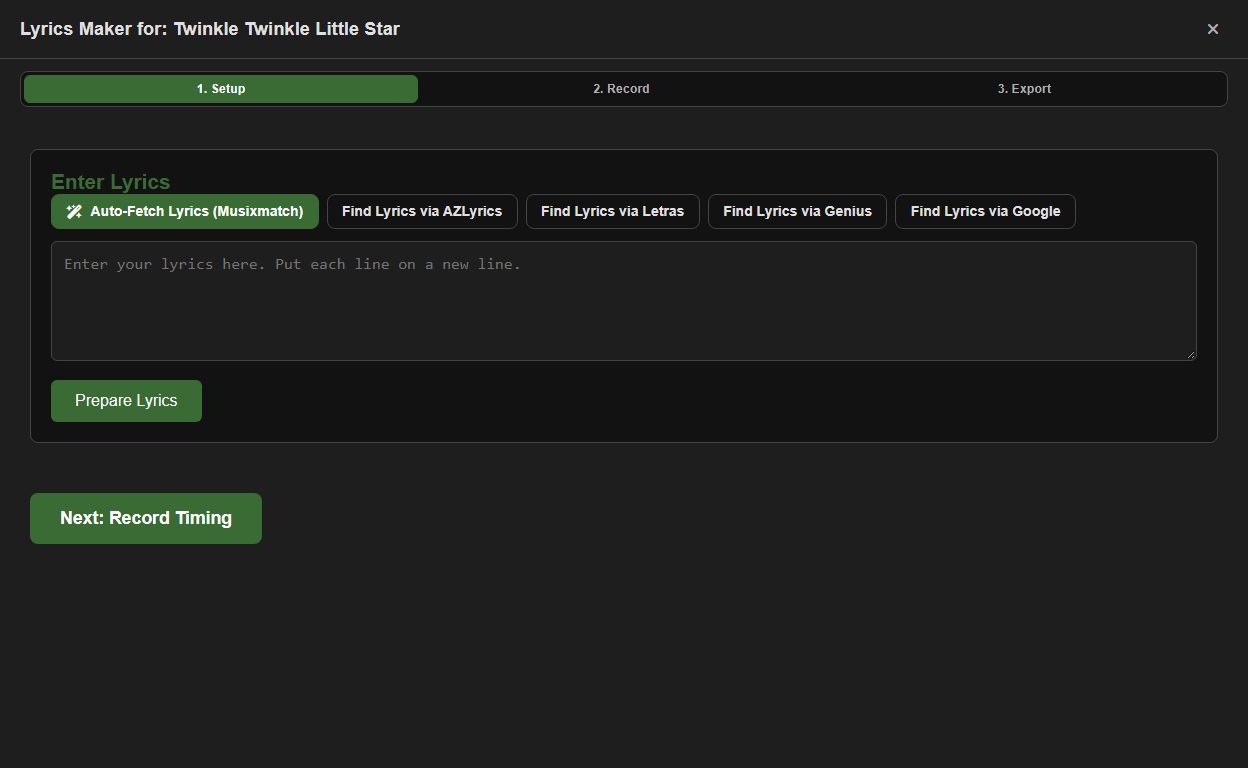
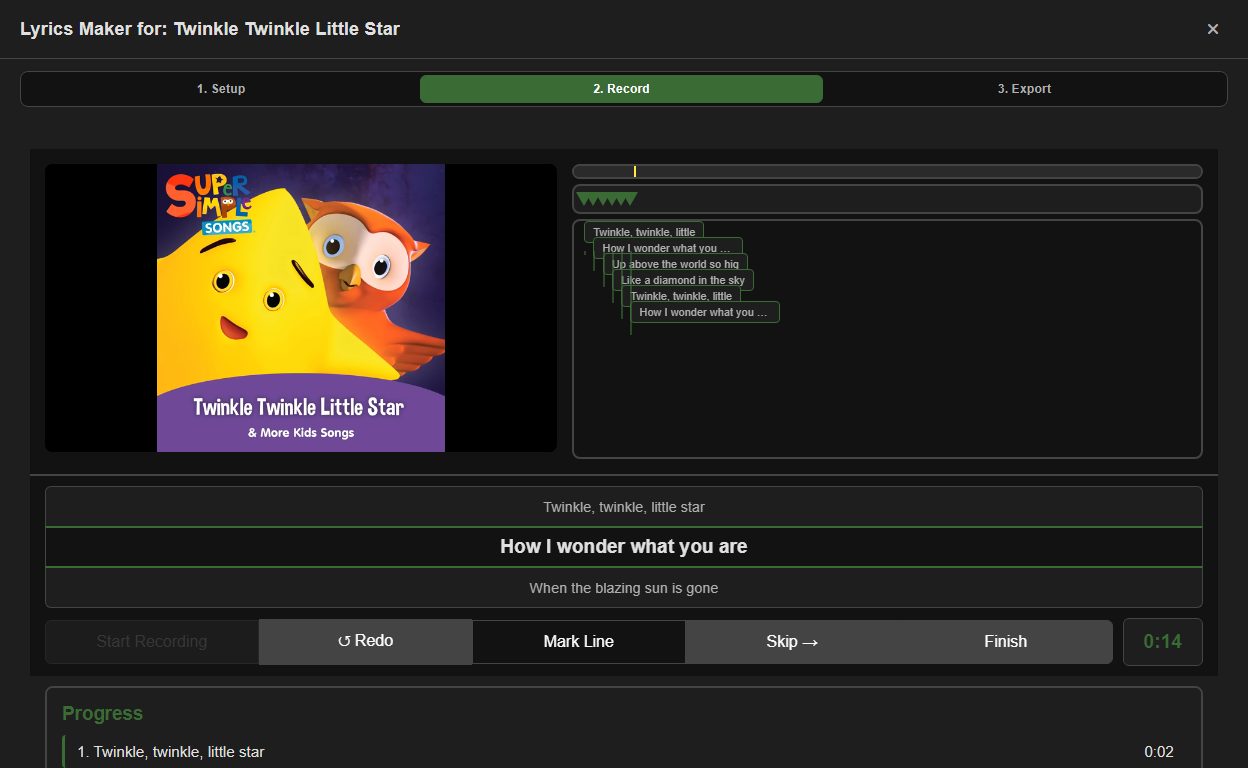
The Lyrics Maker works in three steps.
- Setup: paste the words, or use Auto-Fetch Lyrics (Musixmatch). Buttons beside it search AZLyrics, Letras, Genius and Google for you. Then press Prepare Lyrics.
- Record: press Start Recording, then Mark Line the moment each line begins. Redo steps back a line and rewinds the song to match, and Skip moves past a line. Every marked line appears on the timeline above the list, where you can drag its marker to fine-tune the timing.
- Export: check the result, then Save to Song or copy it.
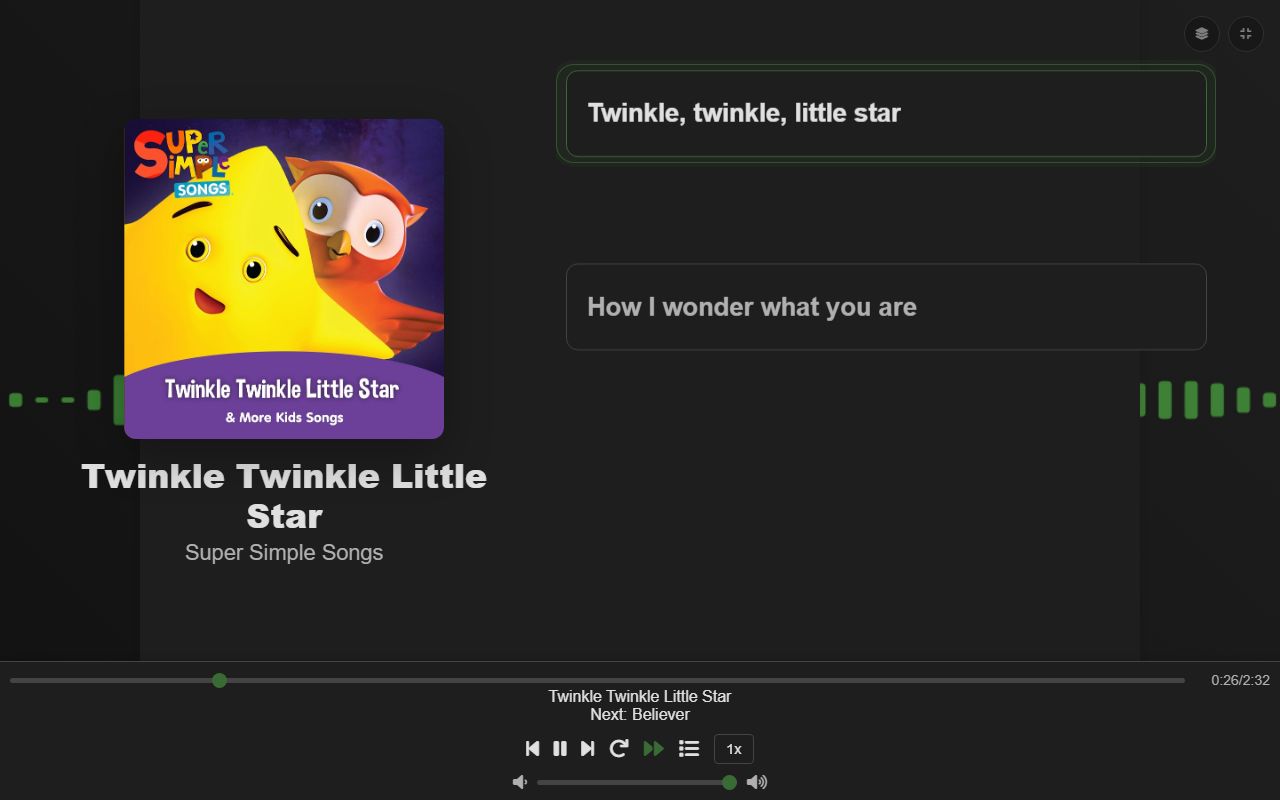
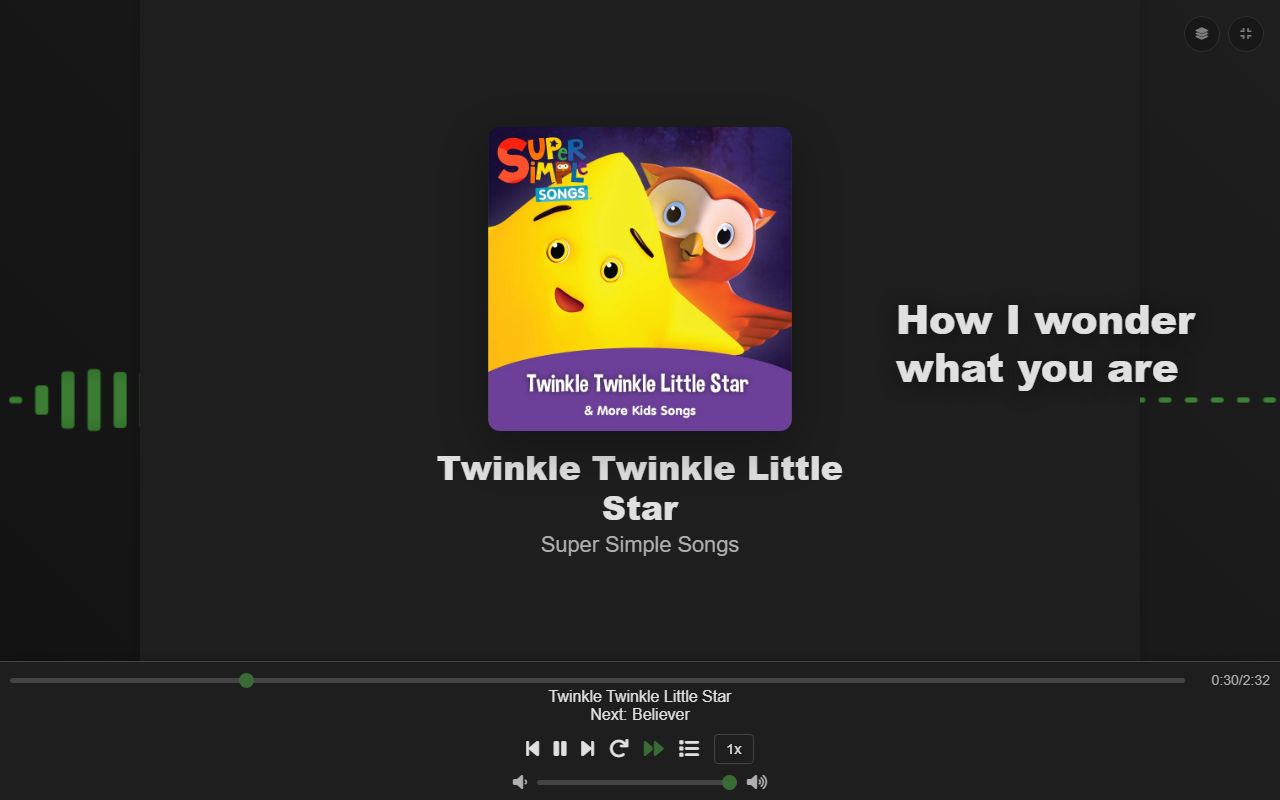
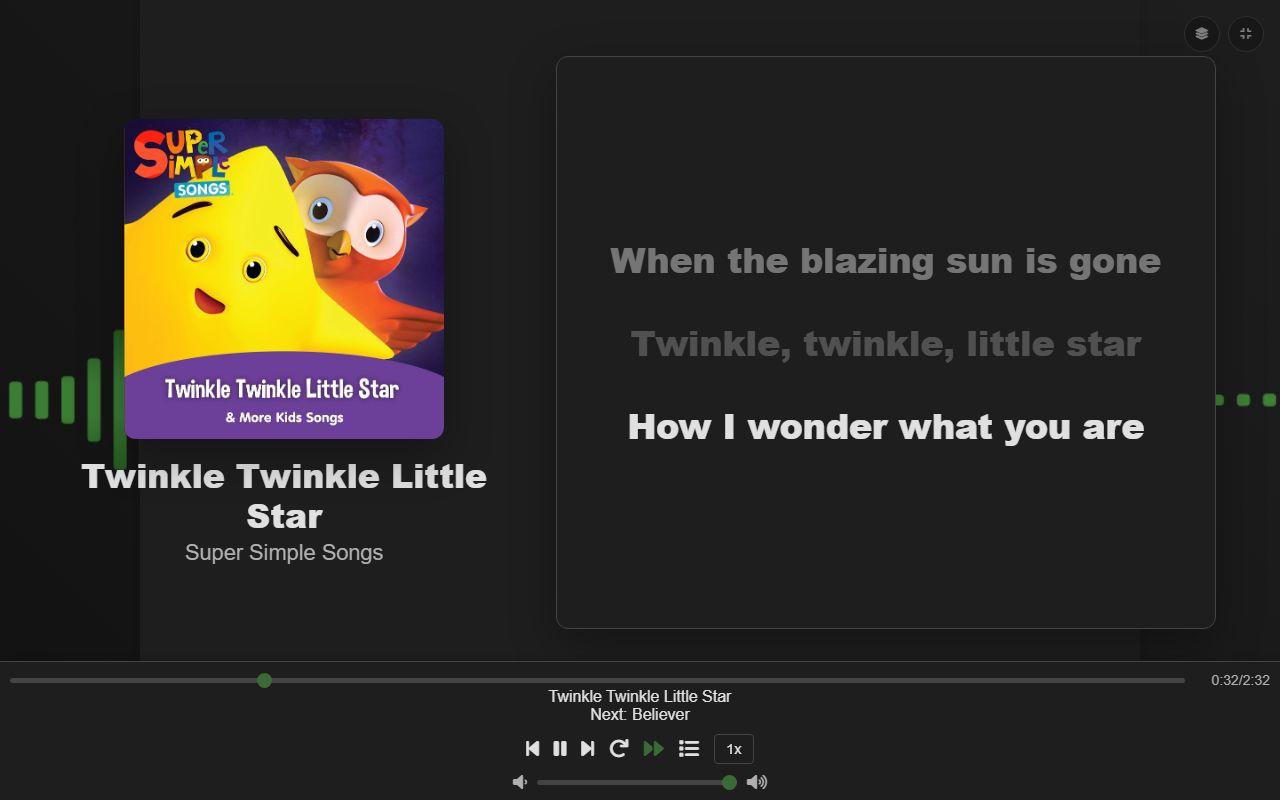
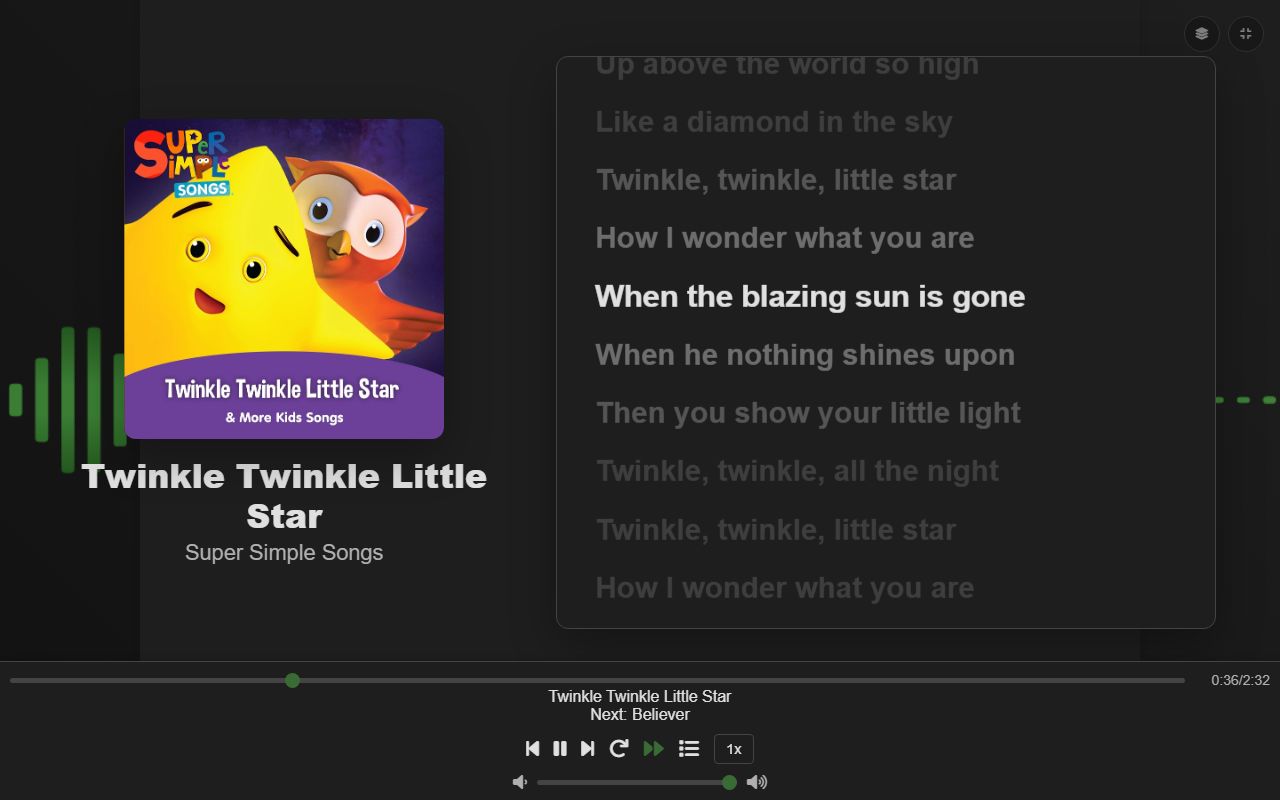
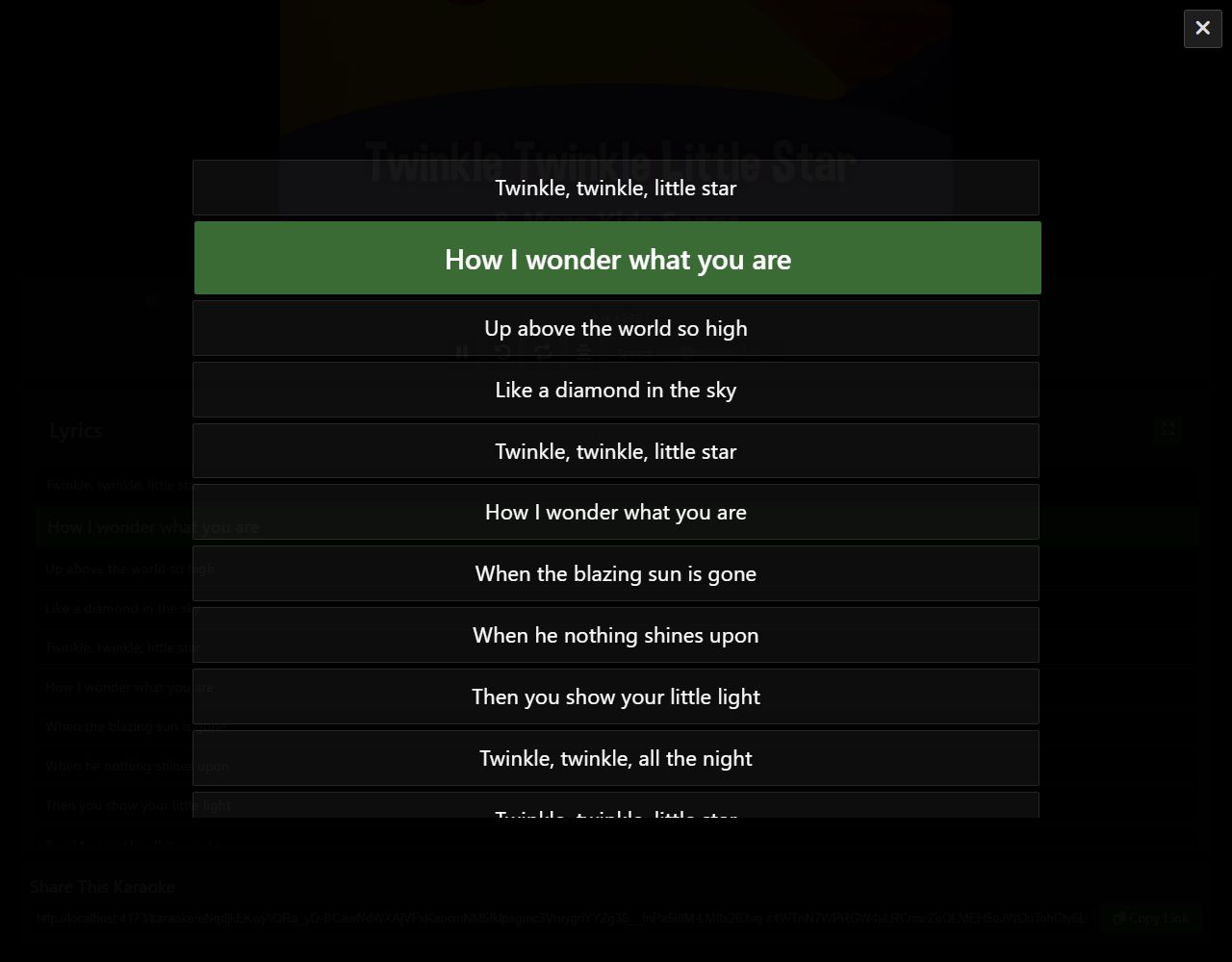
Fullscreen lyrics
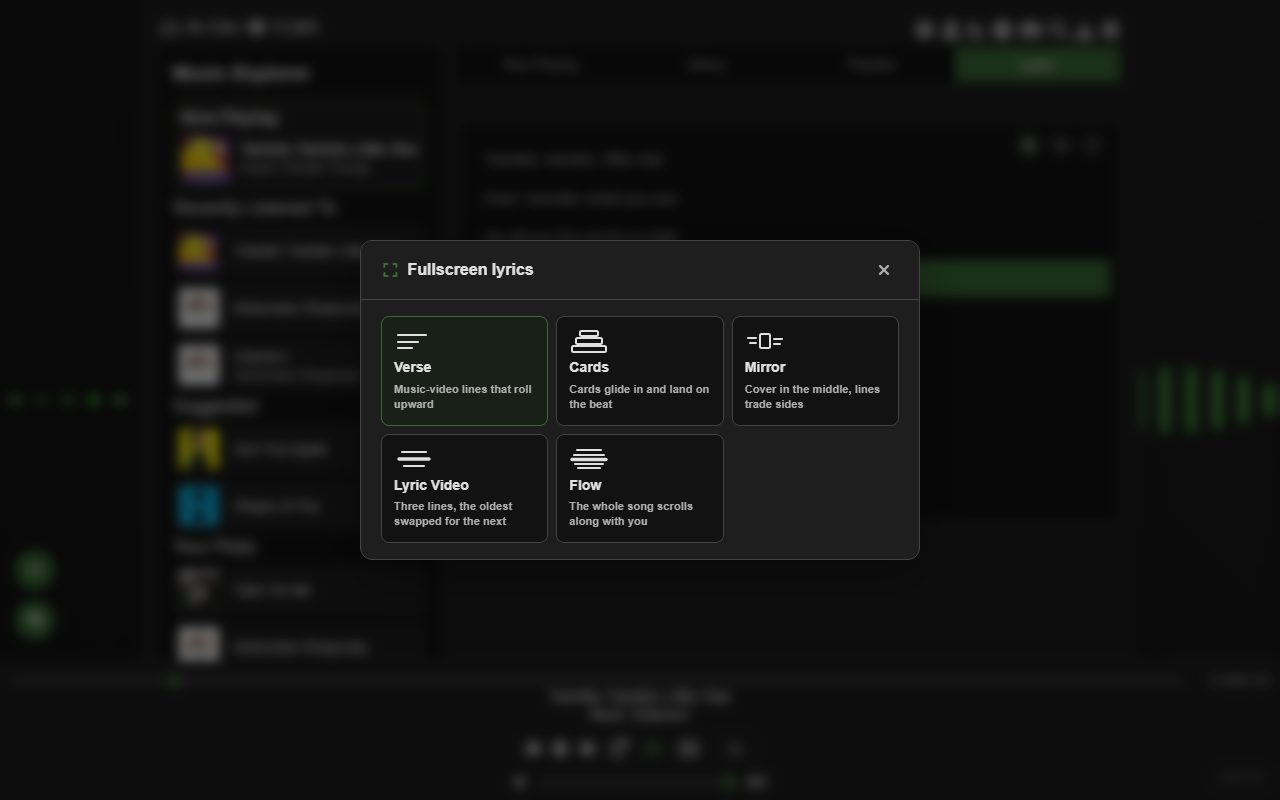
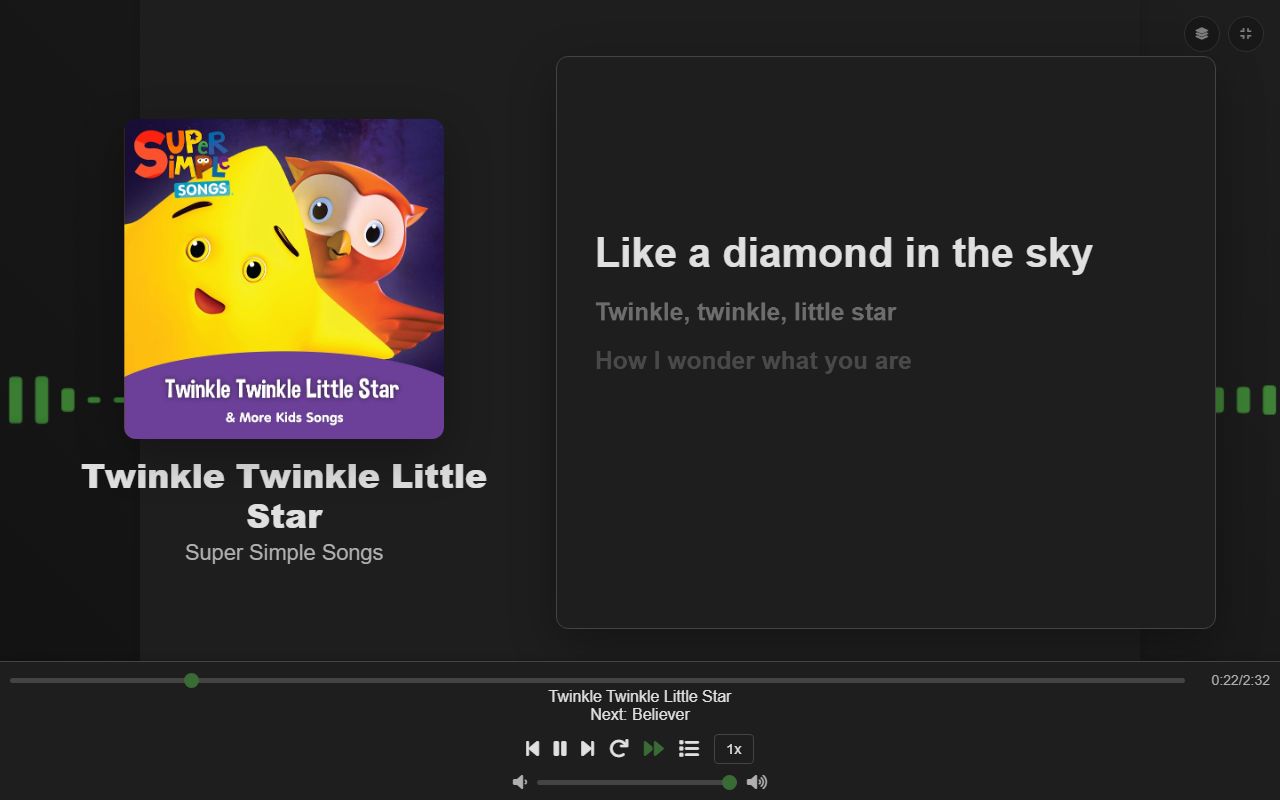
The expand button on the Lyrics tab asks which style you want, then hides everything except the lyrics, the bottom bar and the visualizer. Esc leaves, and the layers button in the corner changes style without leaving.
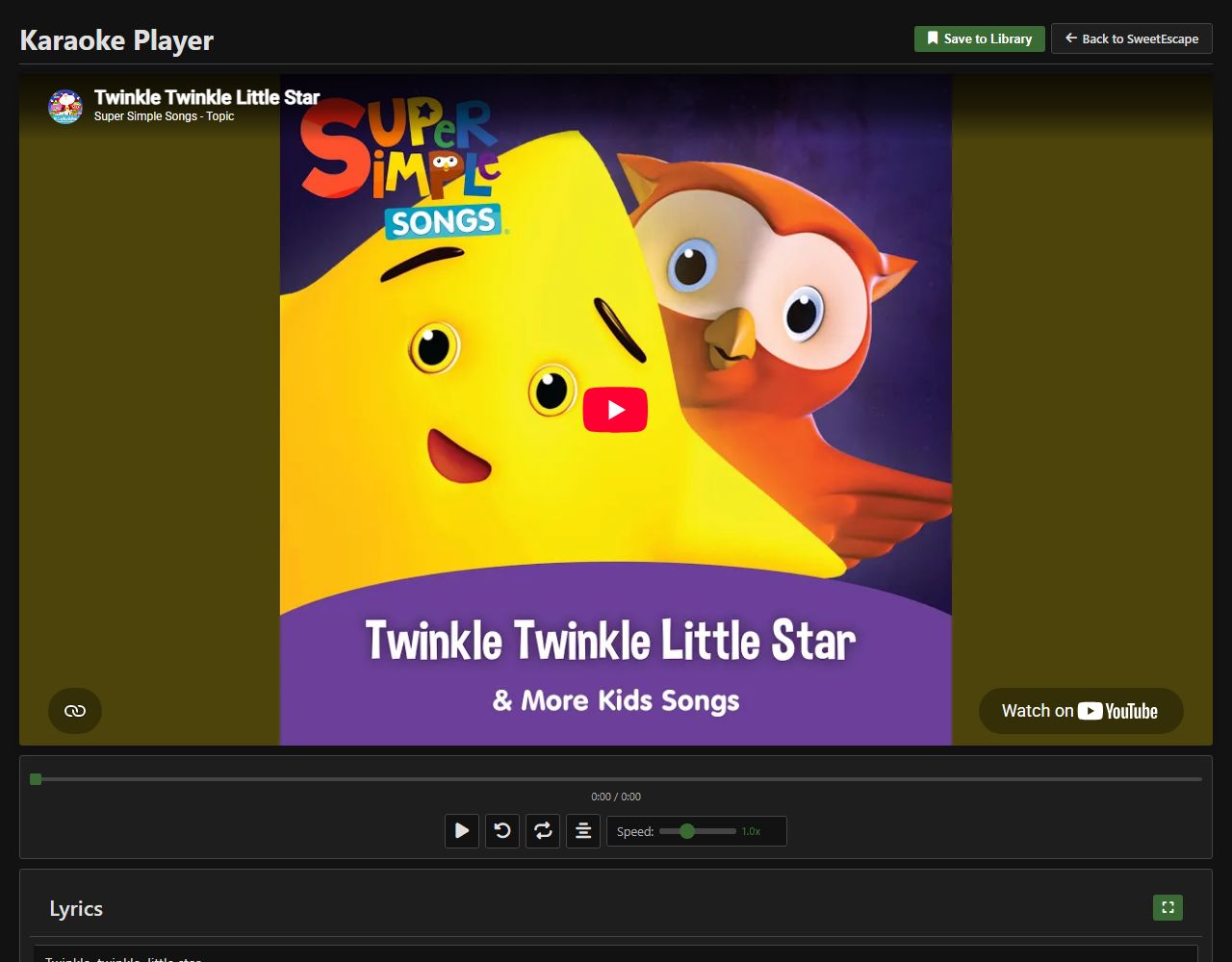
Karaoke page
The share button on the Lyrics tab copies a link that holds the song and its timed lyrics. Nothing is uploaded: the lyrics are compressed into the address itself. Whoever opens it gets a karaoke page that follows the same theme as the player.
The page has play/pause, restart, loop, a centring toggle, a speed slider, and a fullscreen lyrics view. Save to Library adds the song, lyrics included, to the visitor's own library, and Back to SweetEscape opens the player.
Sleep timer
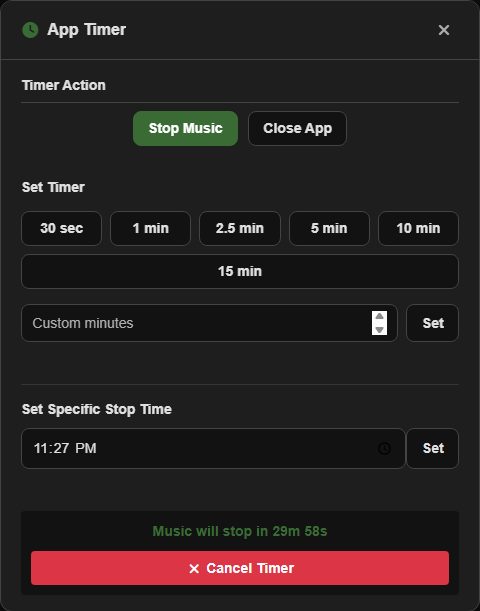
The clock icon or T. First choose what happens when it runs out:
- Stop Music pauses playback.
- Close App replaces the page with a blank one, so the player isn't left in the tab's back history.
Then pick a preset from 30 seconds to 15 minutes, type any number of minutes, or set a clock time to stop at. The dialog counts down the time left (and the stop time, if you set one), a short countdown also appears next to the clock icon, and Cancel Timer stops it.
Identify a song
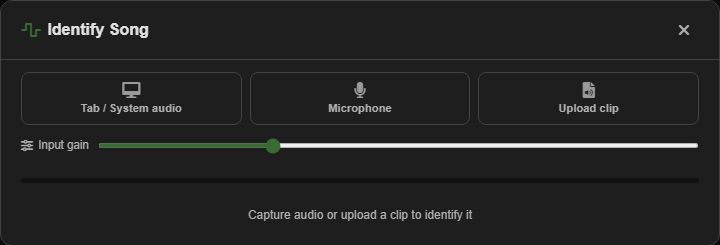
The magnifier icon. Choose where the sound comes from:
- Tab / System audio: share a browser tab or your screen's audio, for a song playing in a video or another app.
- Microphone: hold your device near the music. Raise Input gain if it's quiet.
- Upload clip: an audio or video file.
Once there's a recording you can play it back and drag across the waveform to pick the clearest part. Identify selection or Identify clip sends it off. A match shows the cover with links to Shazam, YouTube Music, YouTube and Spotify, and the + button searches for it so you can add it.
Downloads and local files
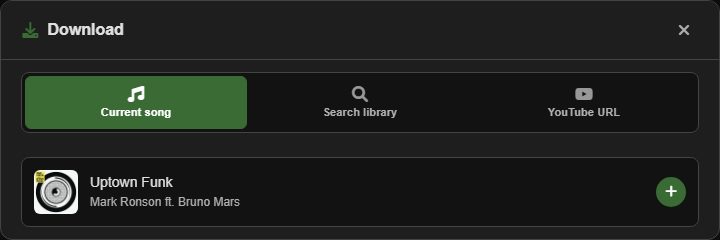
The download arrow opens a download manager with three tabs: Current song, Search library and YouTube URL. Search library lists every song in your library from A to Z, so you can scroll through all of them or type to narrow the list, with the same multi-language matching as the library search. Songs you have already downloaded, or linked to a file on your device, carry a green Downloaded mark in the list, on the current song and in the queue, so you don't download the same song twice. Add songs to its list, then download them one at a time or with Download all. Finished songs are struck through, and anything in progress can be cancelled. Files are MP3s.
A stand-alone version lives at /download for quick downloads on a phone without opening the player.
To play a downloaded file instead of YouTube, drag it onto the song in your library or use Link local file in the song's edit dialog. Linked songs play with no connection at all, and the visualizer reacts to their actual sound. The player itself also loads offline after your first visit.
SweetEscape Lite
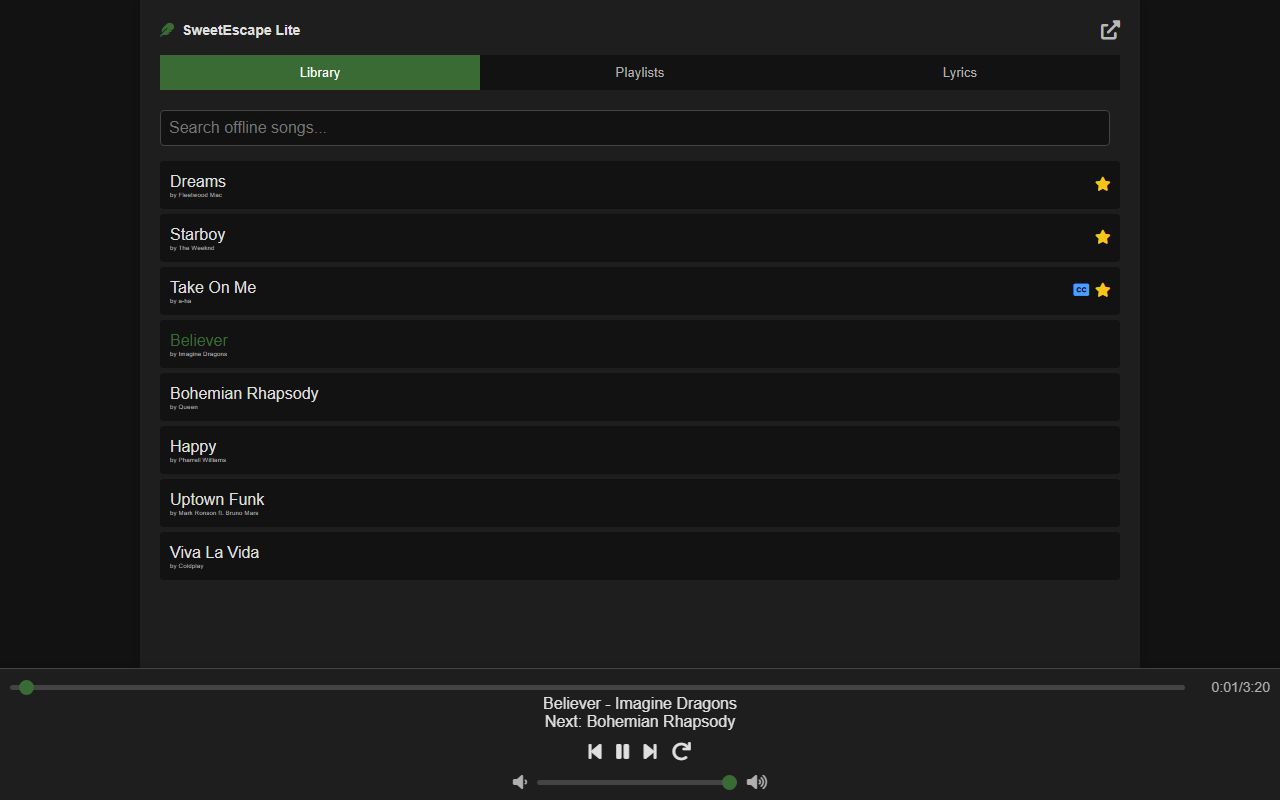
/lite is a pared-down player for the songs you've linked to a file on your device. It has the Library with search, your Playlists showing only their offline songs, and Lyrics, which load only when you open that tab. There's no YouTube, no visualizer and nothing that needs the internet, so it uses far less battery and opens offline once you've visited the site.
Adding and editing songs, settings, the queue, statistics, the timer and Discord stay in the full player, which the arrow at the top right opens. Lite only reads your library, so it never changes anything in it.
Like linking files, Lite needs Chrome or Edge. After the browser restarts it may ask once for permission to open a song's file. Press play to allow it.
Installing the app
In Chrome or Edge, Install in Settings, Additional (or the install icon in the address bar) adds SweetEscape to your computer or phone. It opens in its own window with no address bar, gets an icon in the taskbar and Start menu, and opens offline like the site does. Your library is the same one the browser uses, so nothing needs moving.
Right-click the taskbar icon, or long-press it on a phone, to open SweetEscape Lite directly. To remove the app, use the ⋮ menu in its window.
Listening statistics
Statistics start once you switch on Track Listening Statistics in Settings, Additional. A song counts as played after you've heard a third of it or ten seconds, whichever is shorter.
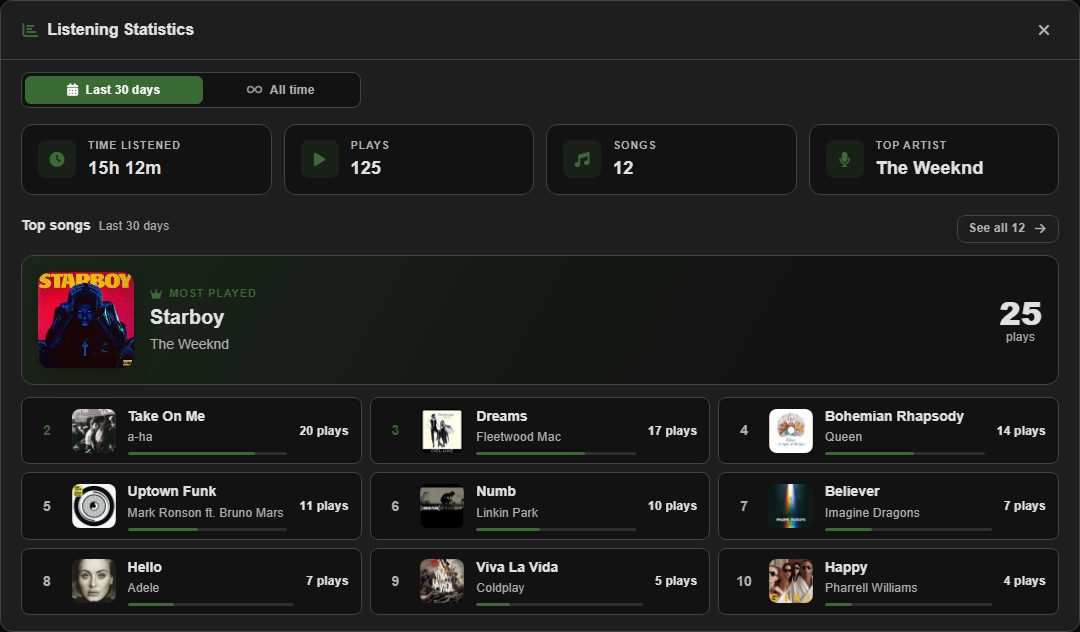
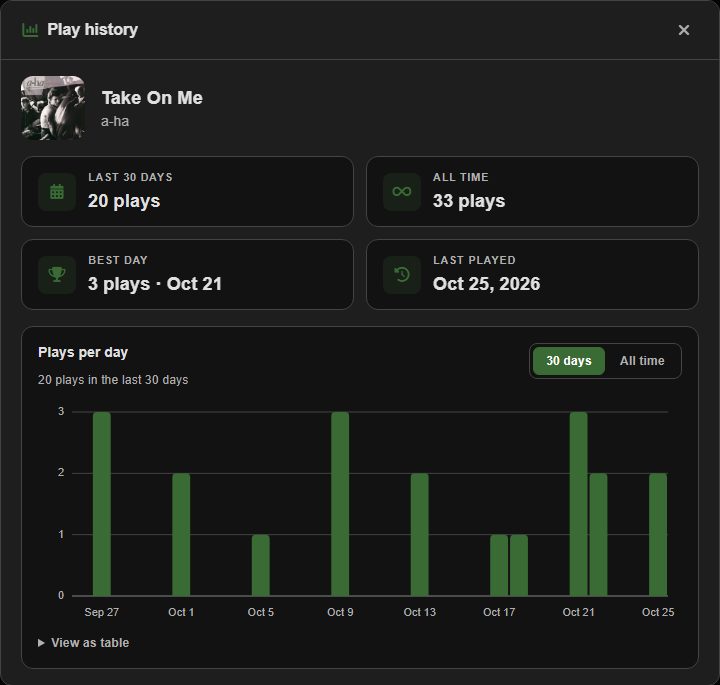
The bar chart icon shows the last 30 days or all time: time listened, plays, number of songs, your top artist and your top songs. Click any song for its own history: plays per day or per month, its best day and when you last played it, as a chart or a table.
Switching statistics off deletes everything they've recorded.
Themes and glass
The moon icon (P) cycles light, dark and custom. The browser tab's icon follows your accent colour. Settings, Theme has the rest:
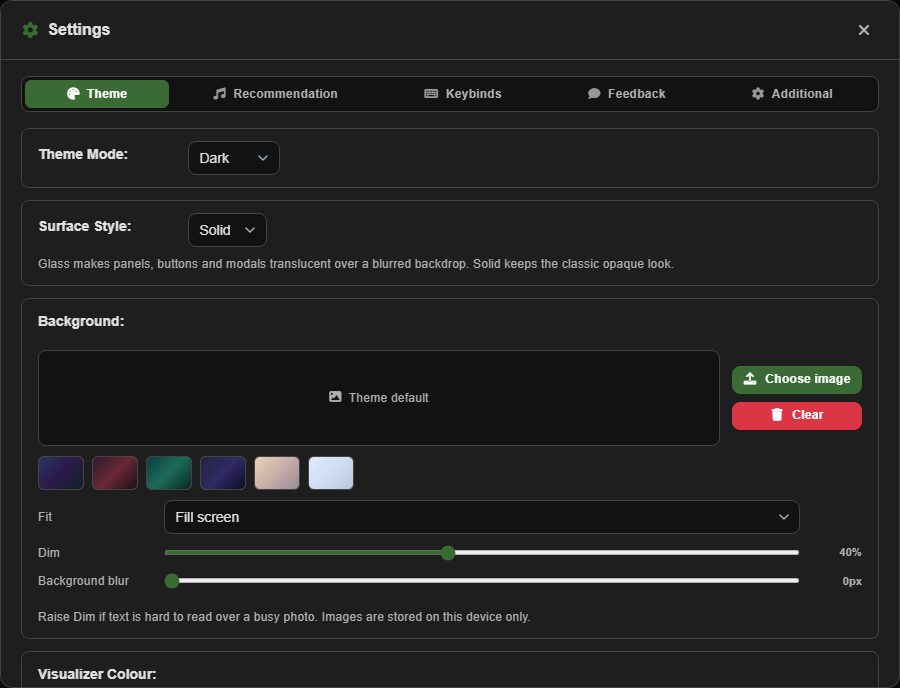
- Surface Style: Solid, or Glass, which makes panels see-through over a blurred background. Glass has sliders for transparency, blur and vibrancy, plus presets.
- Background: your own image or one of the built-in gradients, with fit, dim and blur. The image stays on your device.
- Album Art Background: in glass mode, fills the background with a soft, slowly drifting copy of the current song's cover instead.
- Visualizer Colour: your theme colour, any colour you pick, or Auto, which takes it from the album cover.
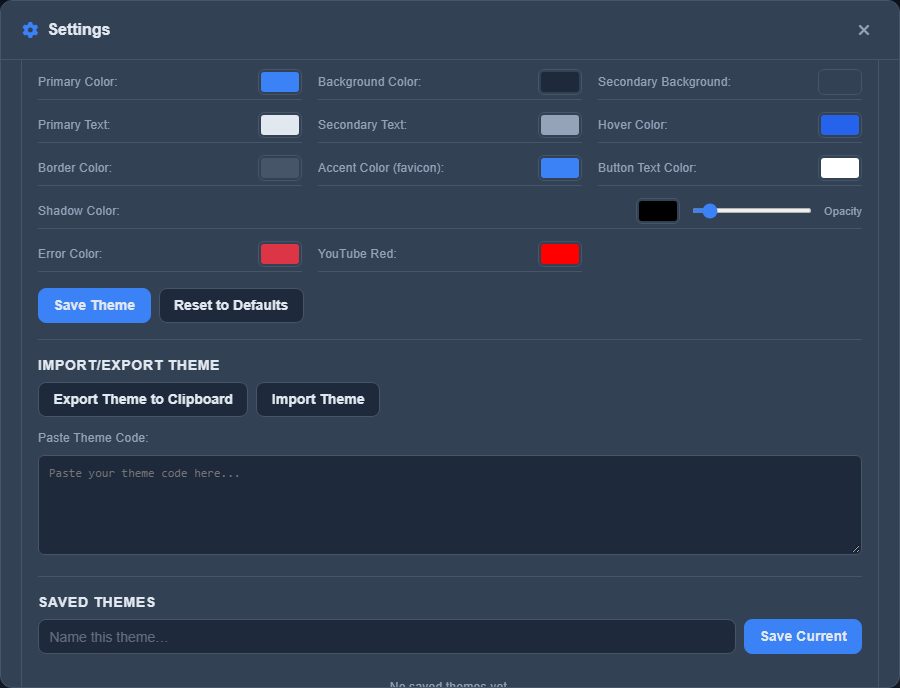
- Customize Colors (custom theme): set all twelve colours by hand. Export Theme to Clipboard gives you a code to share, Import Theme takes one, and Saved Themes keeps named themes to switch between.
Visualizer
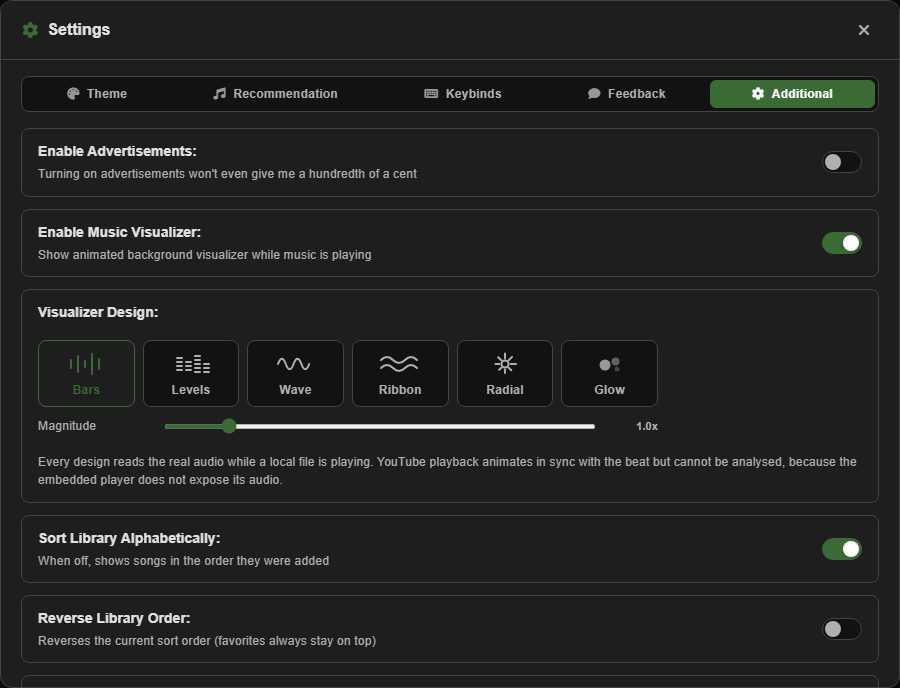
The animation behind the player. Turn it on or off, choose one of six designs (Bars, Levels, Wave, Ribbon, Radial, Glow) and set its size with Magnitude in Settings, Additional. In solid mode it shows at the sides of the screen; in glass mode the panels let you see all of it.
It reads the real audio for songs playing from a local file. YouTube's player doesn't let pages read its sound, so for YouTube songs it moves in time with the music without measuring it.
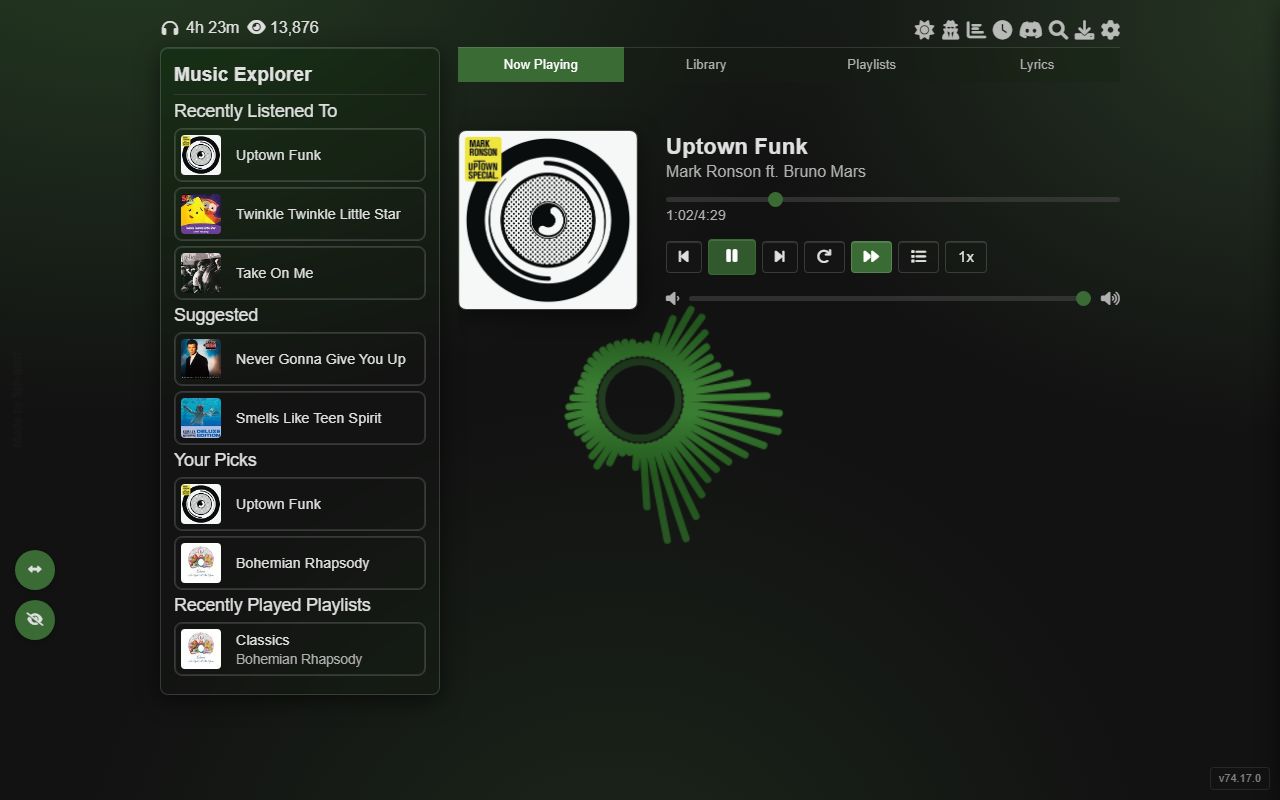
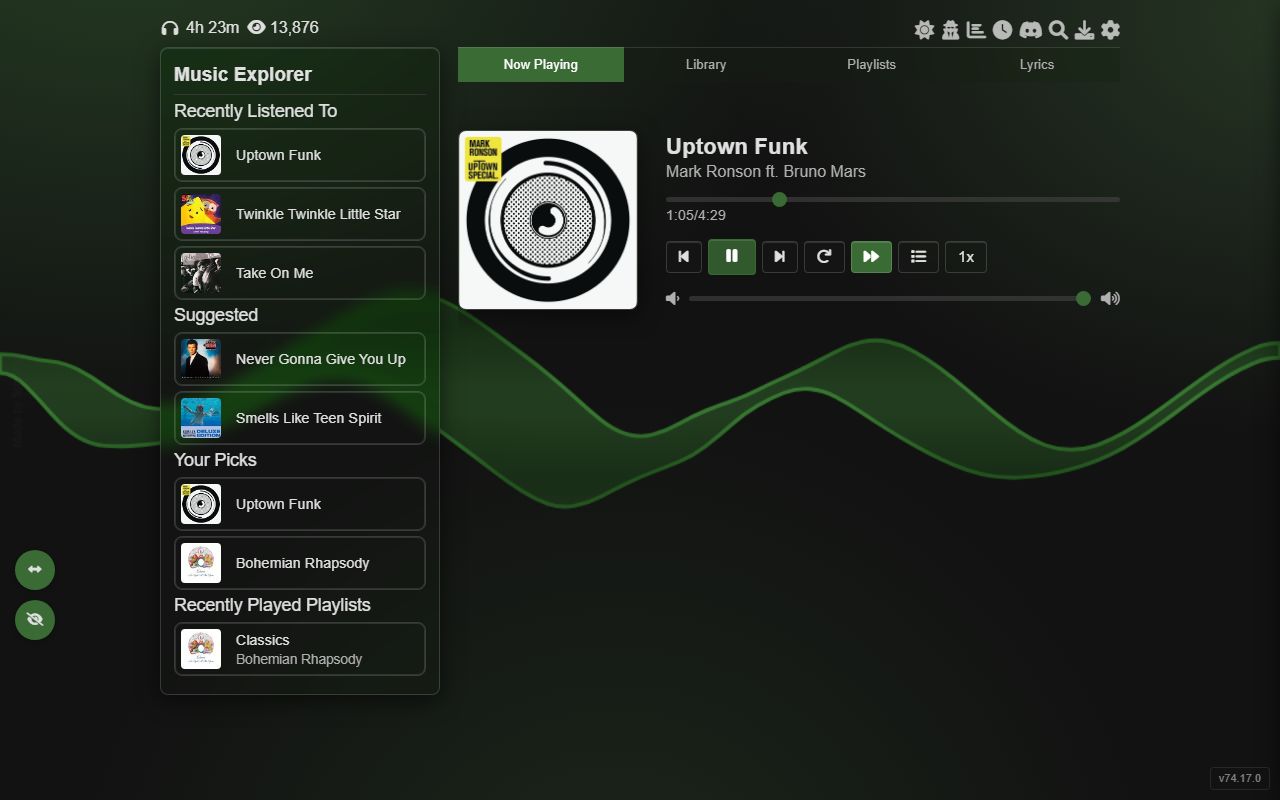
Battery saver
The battery icon in the top bar switches off the parts of the player that work your computer hardest. Playback, the queue, lyrics and everything else keep working. The icon turns into a leaf while it's on, and clicking it again puts everything back exactly as it was, because battery saver never changes your own settings.
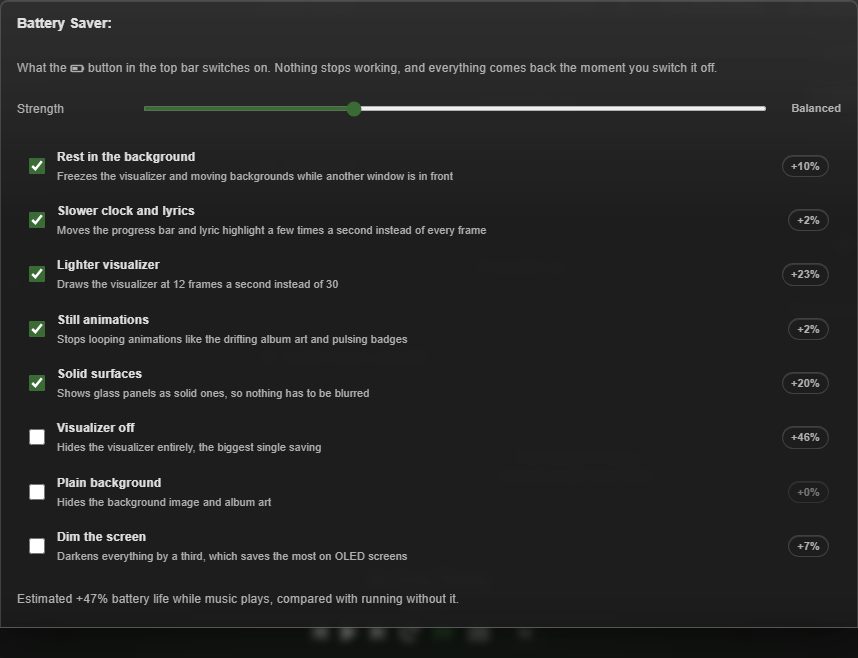
Settings, Additional decides how far it goes. Drag Strength from Normal to Extreme, or tick the options yourself:
- Rest in the background: freezes the visualizer and moving backgrounds while another window is in front.
- Slower clock and lyrics: the progress bar and lyric highlight move a few times a second instead of every frame.
- Lighter visualizer: 12 frames a second instead of 30.
- Still animations: stops looping animations such as the drifting album art.
- Solid surfaces: shows glass panels as solid ones.
- Visualizer off: the biggest single saving.
- Plain background: hides the background image and album art.
- Dim the screen: darkens everything by a third, which helps most on OLED screens.
Next to each option is an estimate of the extra battery life it gives on its own with your current settings, and the line underneath estimates the ticked options together. They are estimates; the real figure depends on your device and screen. For the lightest option of all, use SweetEscape Lite.
Keyboard shortcuts
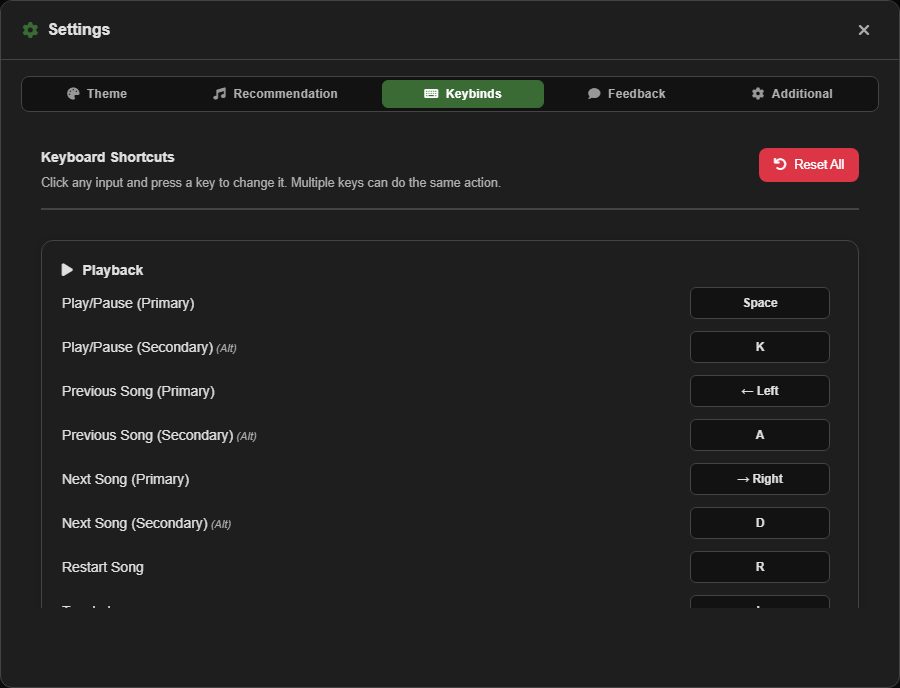
Shortcuts don't fire while you're typing in a box. All of them can be changed in Settings, Keybinds: click a key, then press the new one. Reset All restores the defaults.
| Key | Does |
|---|---|
| Space or K | Play or pause |
| ← or A | Previous song |
| → or D | Next song |
| F / G | Back / forward 5 seconds |
| R | Restart the song |
| L | Loop this song |
| ↑ / ↓ | Volume up / down by 10% |
| = / - | Volume up / down by 1% |
| Y | Open the queue |
| M or Tab | Playlist side panel |
| Q | Next tab |
| O | Show or hide Music Explorer |
| H | Show or hide the control bar |
| U | Video mode |
| I | Miniplayer |
| P | Next theme |
| T | Sleep timer |
| Alt + Shift + G | Guide mode (fixed) |
Disguise
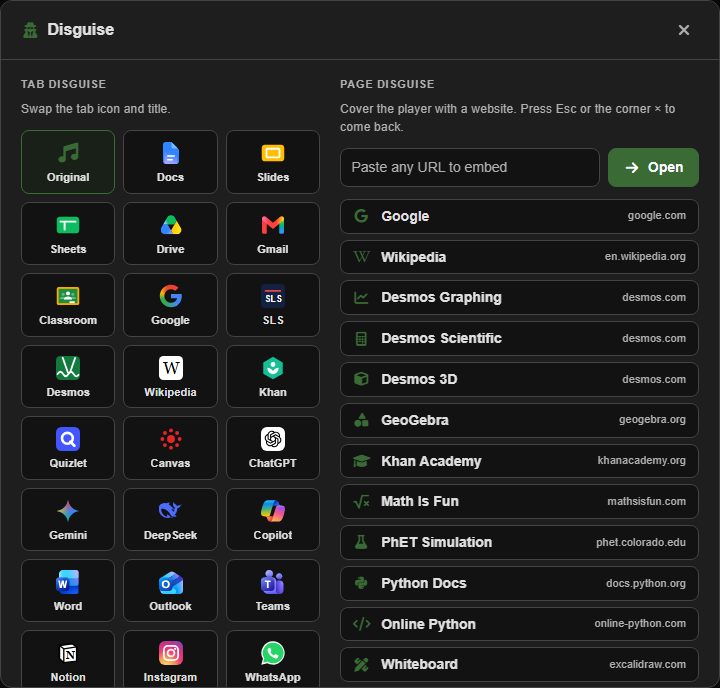
The mask icon. Tab disguise on the left changes the browser tab's icon and title to look like Google Docs, Gmail, Classroom, Desmos and about twenty others. It stays until you choose Original.
Page disguise on the right covers the whole player with a real website, either a preset or any address you type, while the music keeps playing. Esc or the × in the corner brings the player back.
Discord
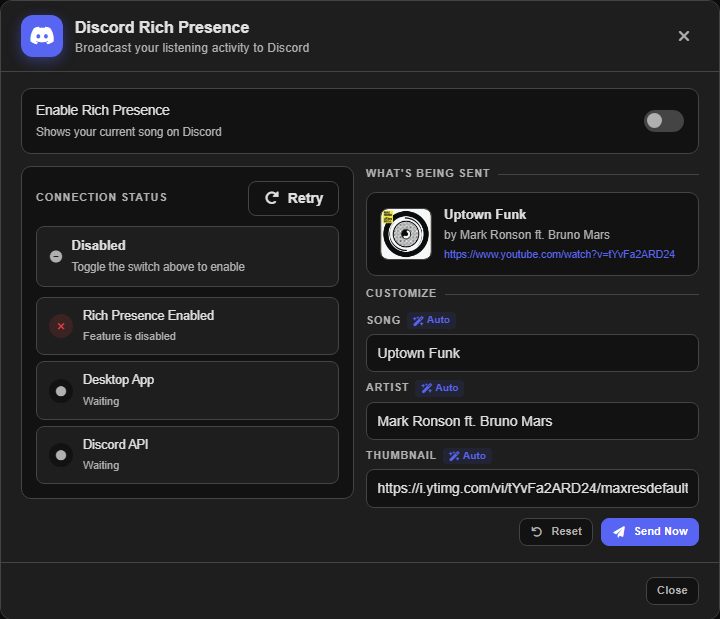
Shows what you're listening to on your Discord profile, with a progress bar while the song plays. Browsers can't talk to Discord directly, so this goes through SweetEscape RPC, a small open-source tray app on your computer. Turn on Enable Rich Presence, and the three status steps on the left turn green once the app and Discord are connected.
If the app isn't running, the dialog offers Open app, which asks your browser to start it, and a Windows download. Run the download once; after that, Open app starts it whenever it isn't running, the way Zoom's site opens Zoom. Tick the browser's box to always allow it and it opens without asking. The app only accepts this site and can only change your Discord status; you can read its source and how to check a download.
The app also keeps backups of your library on your PC, in case the browser's storage is ever wiped. Right-click its tray icon and open Library backups: it shows when the last backup was taken and what it holds, lets you back up now, choose how often it happens by itself (weekly by default) and how many to keep, and lists every backup to restore. A backup covers your library, playlists, themes, settings and listening stats. Restoring asks for confirmation first, and if any songs were linked to files on your computer, the site then asks for your music folder and relinks them.
The right side previews what's being sent. You can override the song, artist or picture, Reset to go back to automatic, or Send Now to update straight away.
Sharing and backup
Sharing a song
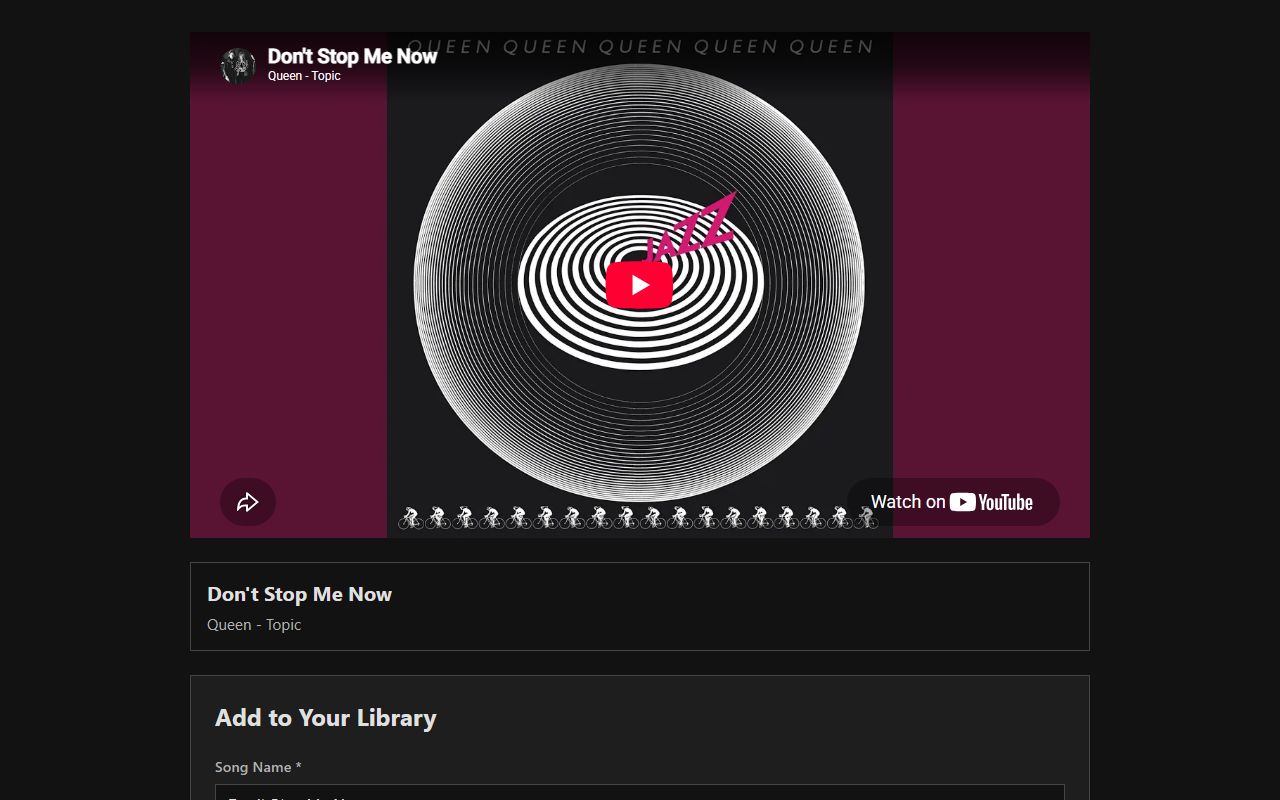
The share button in a song's edit dialog copies a /song/… link. Pasted into Discord, X or most chat apps it shows a preview card with the cover. Opening it shows a page that plays the song, with a form to add it to your own library.
To share a song together with its timed lyrics, send a karaoke link instead.
Backing up your library
Modify Library, Import/Export. Export Songs can export the library, the library together with every playlist, or a single playlist. The result is plain text you can keep anywhere.
Import Songs takes the same text: one song per line as Name, YouTube URL or Name, YouTube URL, Artist, and playlists in braces:
Road Trip{
Take On Me, https://www.youtube.com/watch?v=HzdD8kbDzZA, a-ha
Dreams, https://www.youtube.com/watch?v=5oWyMakvQew, Fleetwood Mac
}
Songs already in your library are skipped, and commas inside song names are handled.
Other settings
- Recommendation: how many recently played songs to remember, and the order and size of each Music Explorer section.
- Feedback: send a note to the developer, plus links to this tutorial and the introduction.
- Additional: ads (off by default), the visualizer, library sort order, and listening statistics.
Guide mode
Press Alt + Shift + G anywhere in the player (Option + Shift + G on a Mac), or open the player with guide mode on.
Guide mode has two parts. The tour dims the screen and steps through each area with a short explanation and its tips. Use the arrow keys or the buttons, and Esc to finish. Point and ask explains whatever you hover over while you keep using the player as normal. On a touchscreen, tap something once to read about it and again to use it.
Guide mode downloads only when you open it, so it adds nothing to the player's loading time.
Quick reference
Every shortcut and gesture from this page, in one list.
Mouse and touch
- Right-click a song's play button, a Music Explorer song, a favourite or a cover in the song grid: add it to the queue.
- Right-click a playlist's cover: queue the whole playlist.
- Long-press a song in the playlist side panel: skip it for this session.
- Drag a playlist tile: reorder playlists.
- Hover a playlist: edit or delete it.
- Hover a song and click +: add it to a playlist.
- Drag a song in the playlist editor: reorder the playlist.
- Right-click the Lyrics tab: every song with lyrics.
- Click a Music Explorer heading: full history (Recently Listened To) or a fresh set (Suggested, Your Picks).
- Click "Billboard Hot 100" in the Global library: the full chart.
- Hover next or previous: the three songs on that side.
- Hover Autofill: preview the cleaned-up name and artist.
- Right-click the song name in the control bar: copy it.
- Paste a YouTube link into the library search and press Enter: add it.
- Drag an audio file onto a song: play it from that file.
- Click the version number: the changelog.
Keyboard
Y queue, U video mode, I miniplayer, O Music Explorer, Q next tab, F / G seek, T timer. The full list is under Keyboard shortcuts.